
STATIX 2D Tutorial
Reinforcement detailing in AutoCAD, step by step. Every picture comes from one real walkthrough drawing: a pool house roof slab, a strip footing, columns, a beam, a base, a stair, an opening, a corner and a retaining wall, then their bending schedule.
- Product
- STATIX 2D for AutoCAD 2025 and 2026
- Standard
- SANS 282:2011
- Walkthrough
- 10 members · 1 656 kg
- Sheet
- Tutorial 1 of 1
01Start here
STATIX 2D adds one ribbon tab to AutoCAD: STATIX 2D. Everything in this guide starts from that tab.

- Open AutoCAD and start a drawing.
- Click the STATIX 2D tab.
- Check the status bar at the bottom right. It shows your licence, for example STATIX: licensed until 12 Oct.
STATIXADDBAR.Your licence and updates
- One licence works on one PC. Sign in on a new PC with
STATIXSIGNINand the licence moves there; the old PC says STATIX 2D was signed in on another PC and stops calculating. Drawing and viewing still work. - Setup ▾ > About (
STATIXABOUT) shows your version, your licence and what is new. - STATIX 2D checks once a day for a newer version and says so on the command line. Setup ▾ > Check for update (
STATIXUPDATE) checks at once and opens the download page.
02Bar setup
Set the drawing's rules once, before you place bars. Click Setup at the right end of the ribbon. One window holds every page; OK saves them all to this drawing.
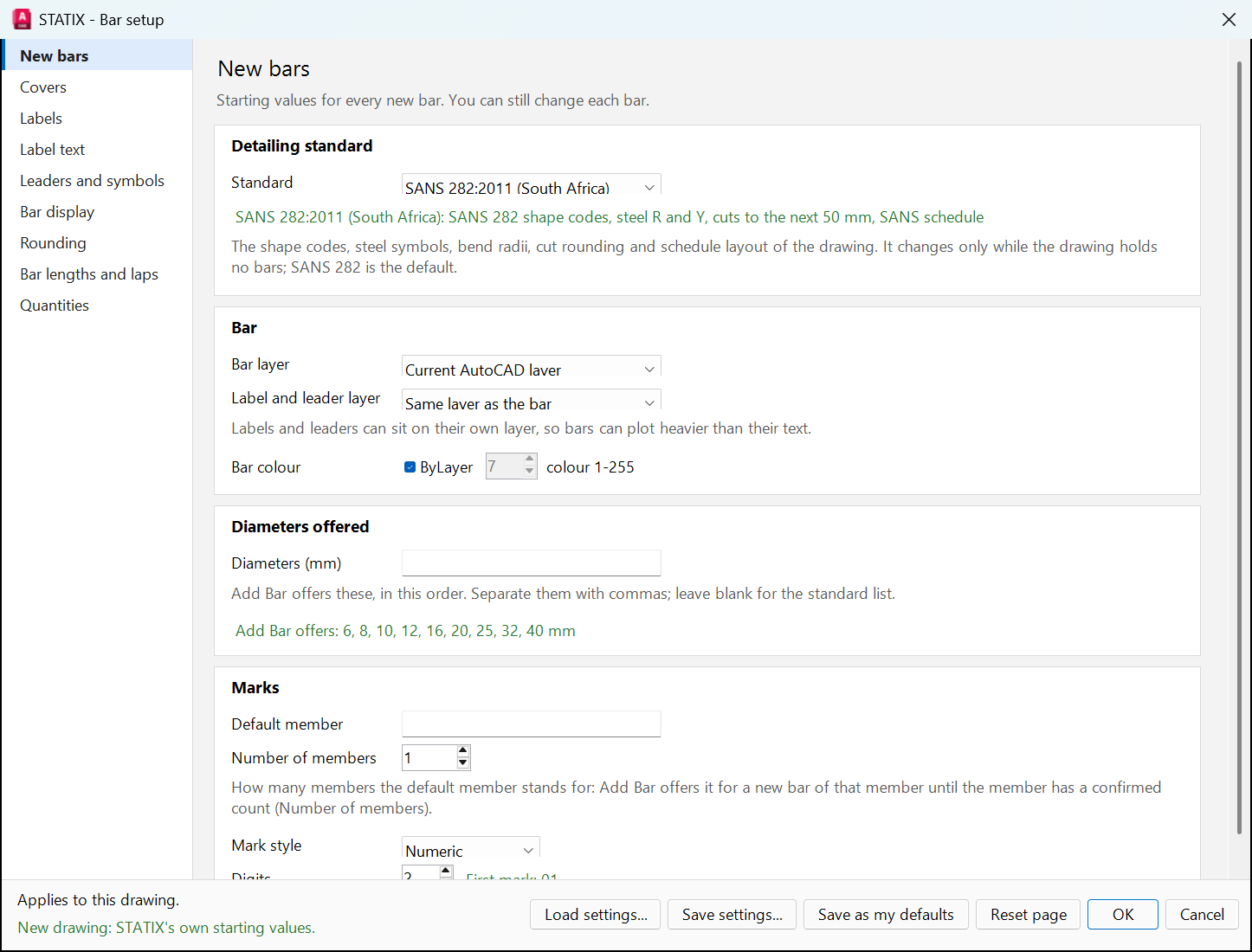
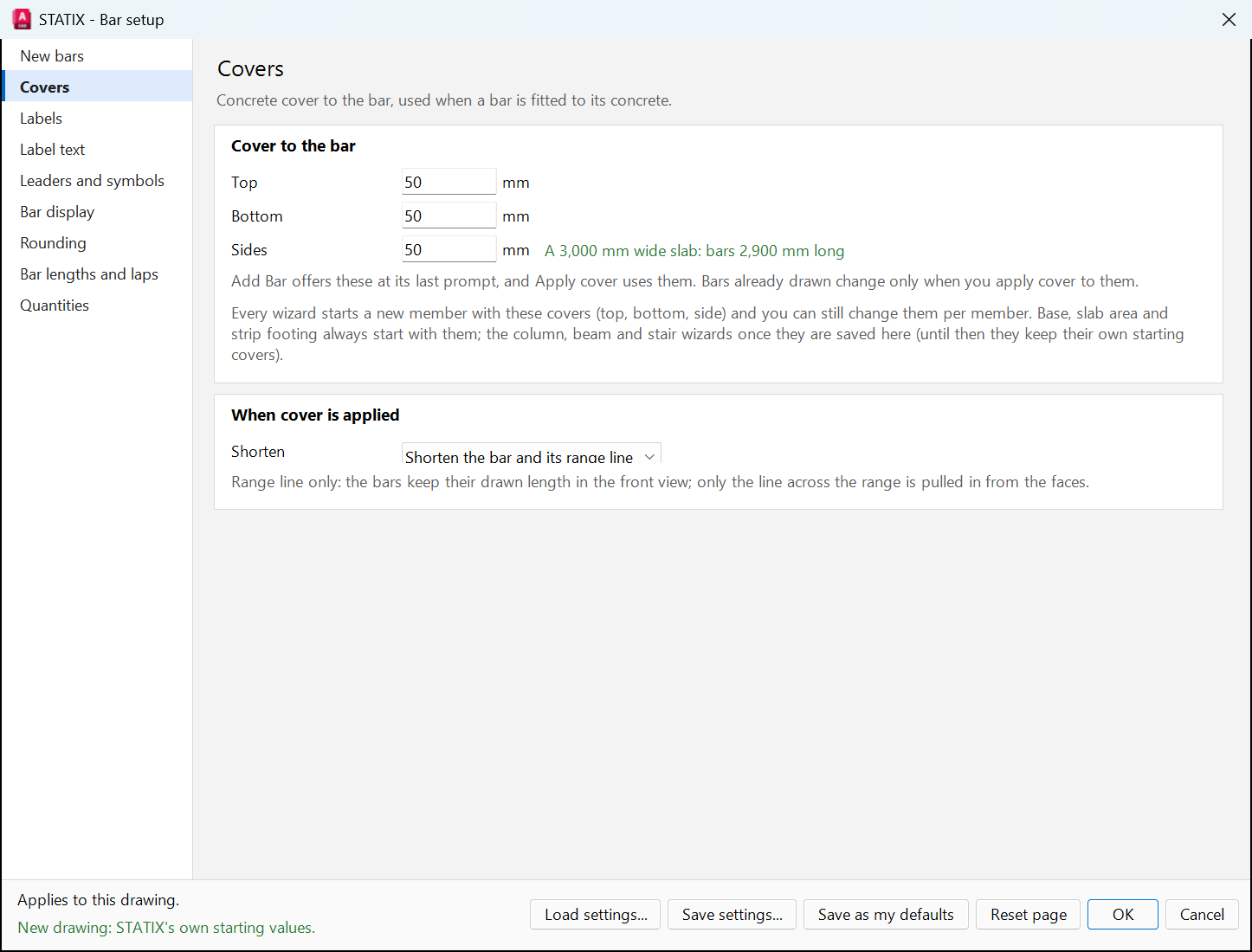
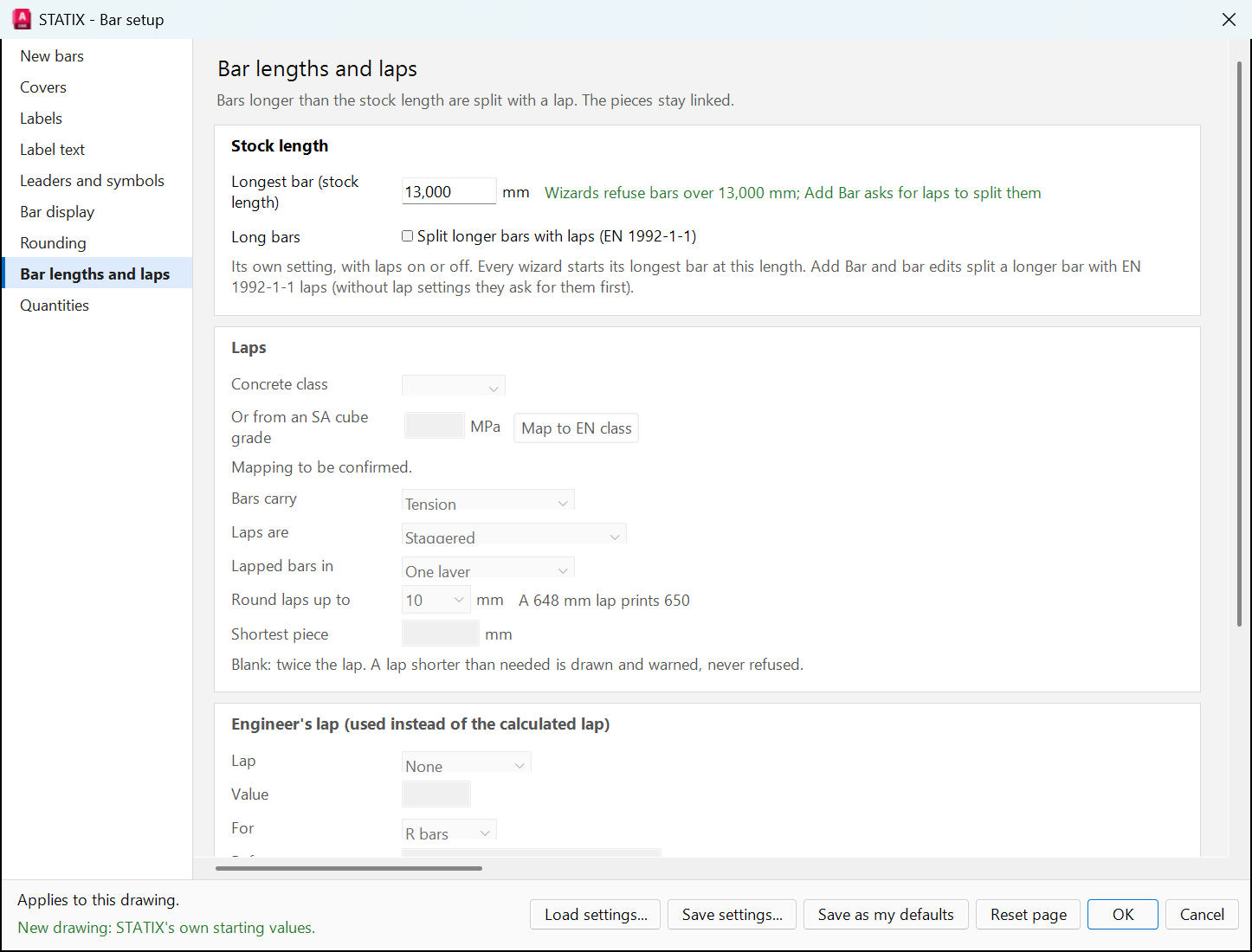
- On New bars, choose the standard. You can change it only while the drawing has no bars.
- On Covers, set the top, bottom and side cover.
- On Bar lengths and laps, set the longest bar and how to lap longer bars.
- Click OK. Use Save as my defaults to start every new drawing with these values.
03How a wizard works
Each wizard details one element type. They all work the same way, so you learn it once.
The preview changes while you type. Use its View list to switch between plan and sections, and its tick boxes to show or hide groups of bars (for example top bars or links). Nothing is drawn until you click Create. To change an element later, select it and click Modify: the same window opens with your saved inputs.
04Slab area
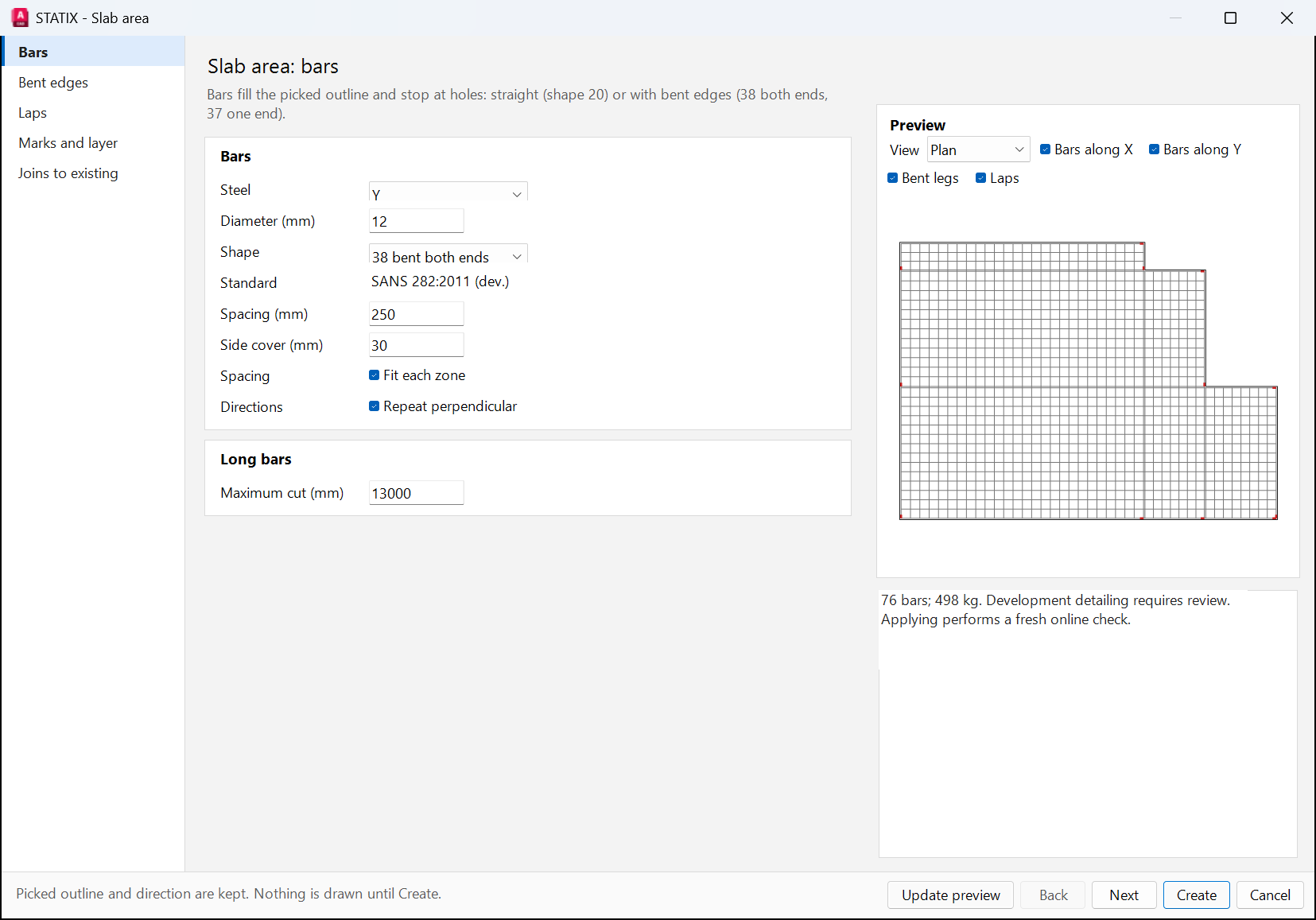
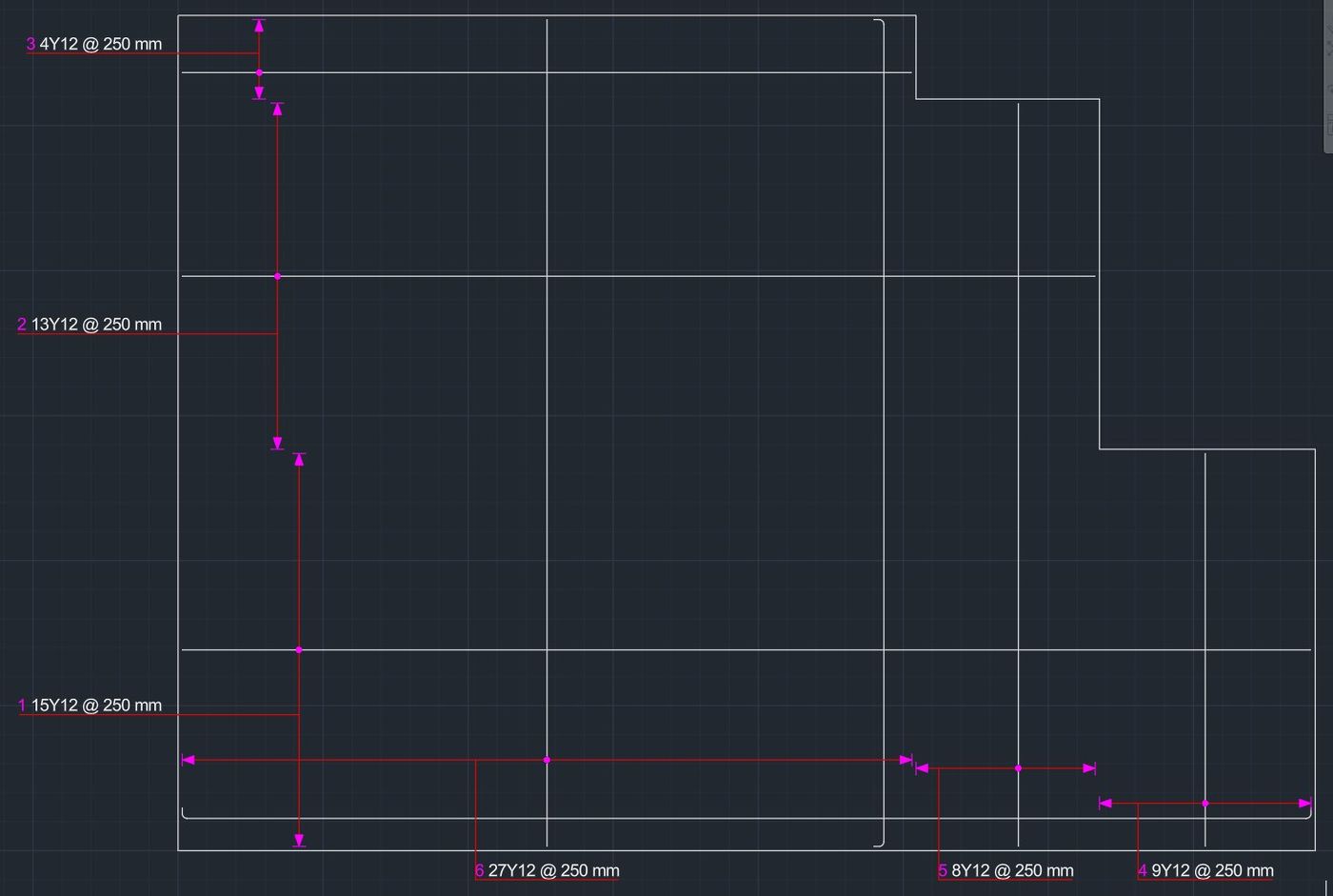
Fills a slab outline with bars both ways: straight (shape 20) or with bent edges (shape 38 both ends, 37 one end). The example is a 9.8 × 7.2 m L-shaped roof slab, 170 mm thick.
Draw the bars STATIXAREAZONE
- Draw the slab outline as a closed polyline.
- Click Slab area and pick the outline.
- Answer No to openings (or pick them), press Enter for no gridlines, and give the grid origin.
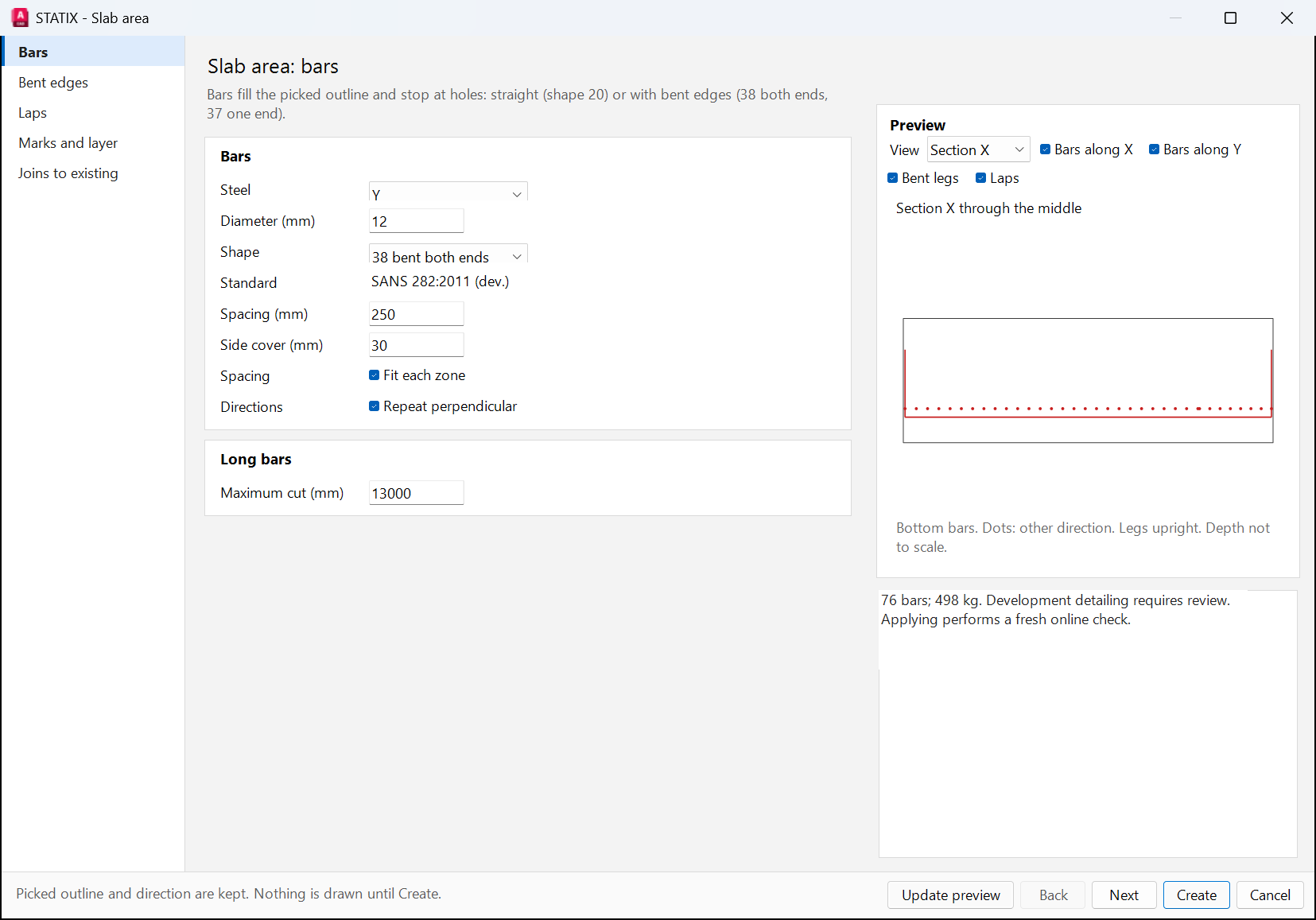
- On Bars: steel Y, diameter 12, shape 38, spacing 250, side cover 30. Tick Repeat perpendicular for bars both ways. Fit each zone spreads the bars evenly in each part of the outline.
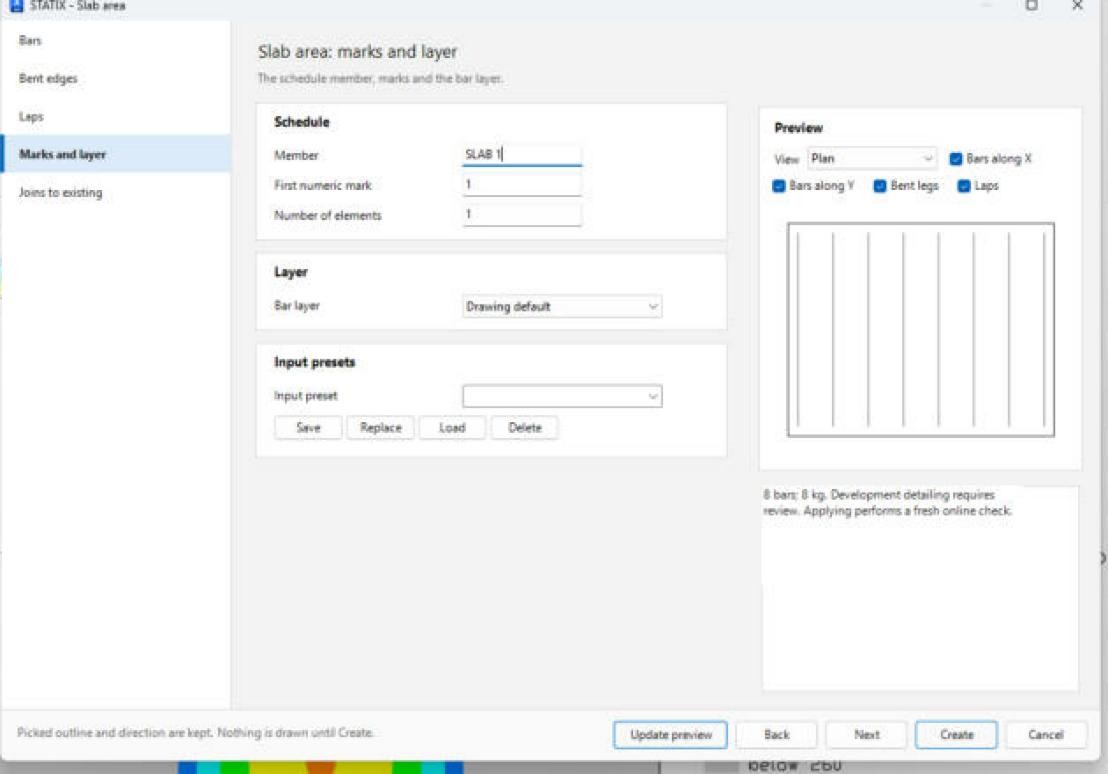
- On Bent edges: other face cover 25. On Laps: slab depth 170. On Marks and layer: member ROOF.
- Click Update preview. The status reads 76 bars; 498 kg (the schedule rounds cut lengths up to the next 50 mm, so it shows 500 kg). Click Create.
Slab from a design file STATIXSLABFILE
- Click Bars ▾ > Slab from file and open a saved rectangular slab design file.
- Pick the slab's lower-left corner. STATIX draws the outline and a note with the depth and the edge supports.
- The file has no bars: place them with Slab area on the new outline, and enter the depth on its Laps page.
Slab steel from the STATIX app STATIXSLABCONTOURS
- In the STATIX app, analyse the model with its slabs, then choose Output ▾ > BIM > Slab steel for STATIX 2D (.json).
- In AutoCAD, click Bars ▾ > Slab steel contours and open that file.
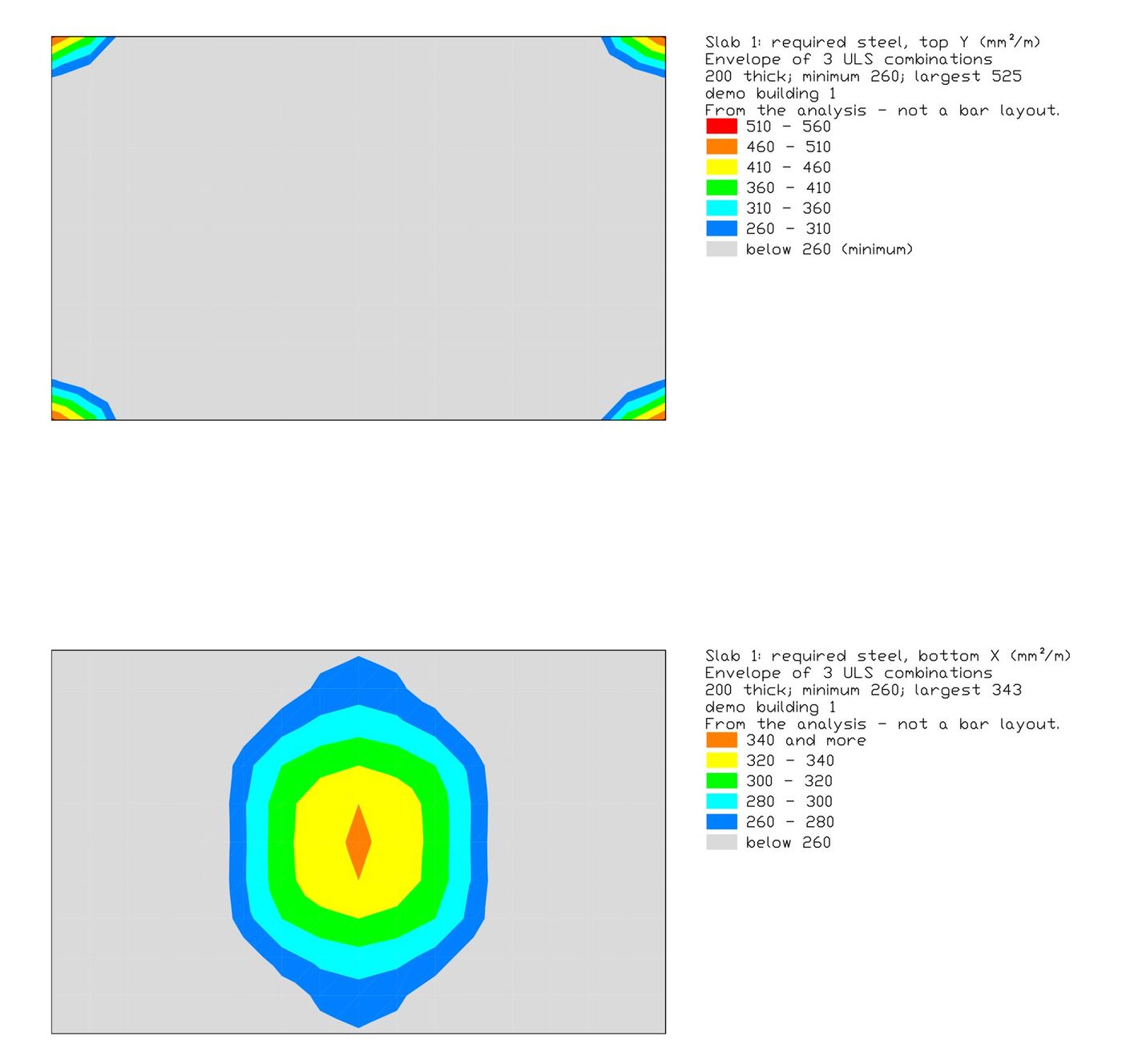
- Choose the slab, the result (1 is the envelope of the ULS combinations) and the steel: BottomX, BottomY, TopX or TopY.
- Press Enter for automatic bands, or Limits to type your own (for example 260,350,450). Pick the slab's first corner.
Bars from the contours STATIXSLABBARS
- Draw a closed polyline round the zone you want to reinforce, over the contour.
- Click Bars ▾ > Bars from contours. Pick the contour, then the zone outline.
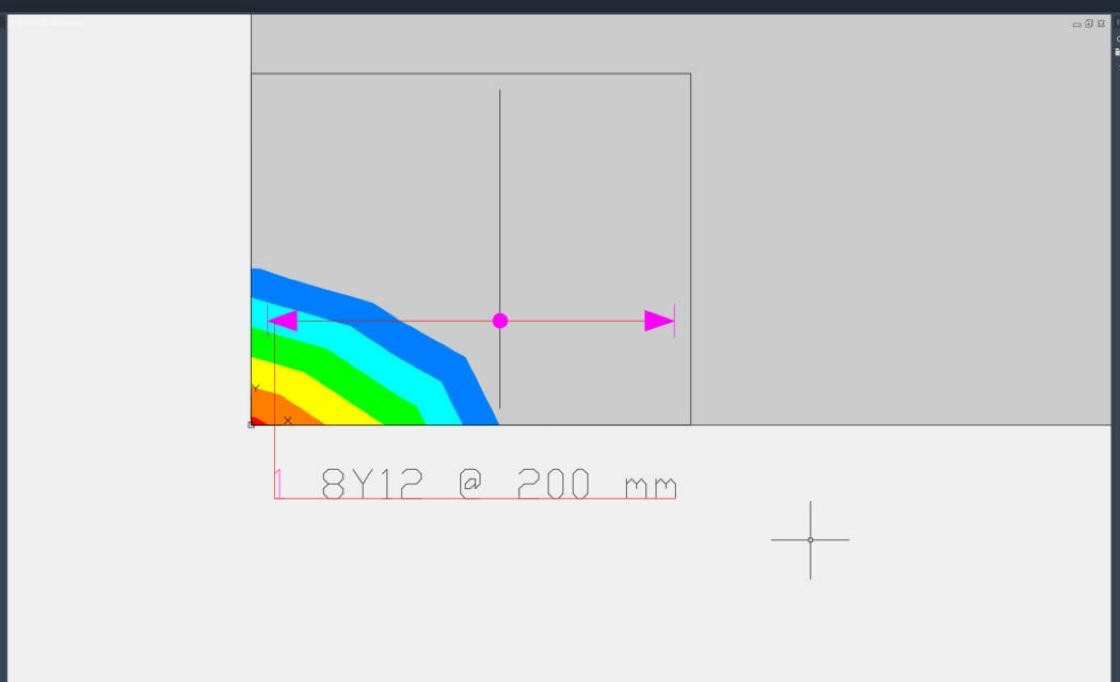
- STATIX gives the largest steel in the zone and lists bars that cover it, lightest first, for example 1: Y12 @ 200 = 565 mm²/m. Choose one.
- Slab area opens on the zone with the steel, size, spacing, face (top or bottom), direction and slab depth filled in. Click Update preview, then Create.
05Strip footing
Concrete and bars for wall footings, from a centre line. Corners and T-junctions of a network are handled for you.
Place a footing STATIXFOUNDATION
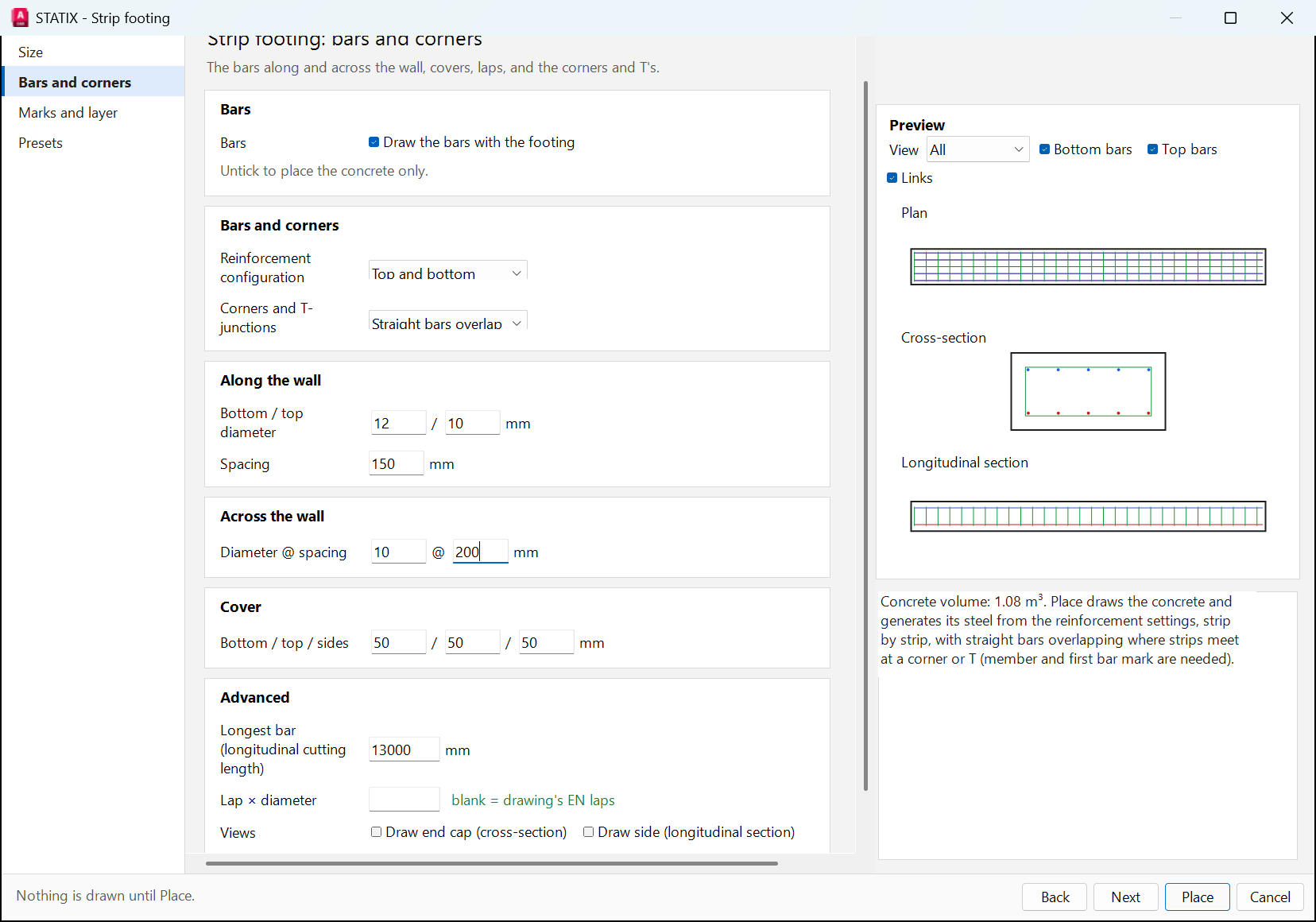
- Draw the wall centre line. Click Strip footing, type Lines, pick the line and press Enter.
- On Size: width 600, depth 300.
- On Bars and corners, keep Draw the bars with the footing ticked and enter the bars: bottom Y12 / top Y10 at 150 along the wall, Y10 @ 200 across. Untick it to place the concrete only.
- On Marks and layer: member FOOTING and the first bar mark. Click Place.

06Columns
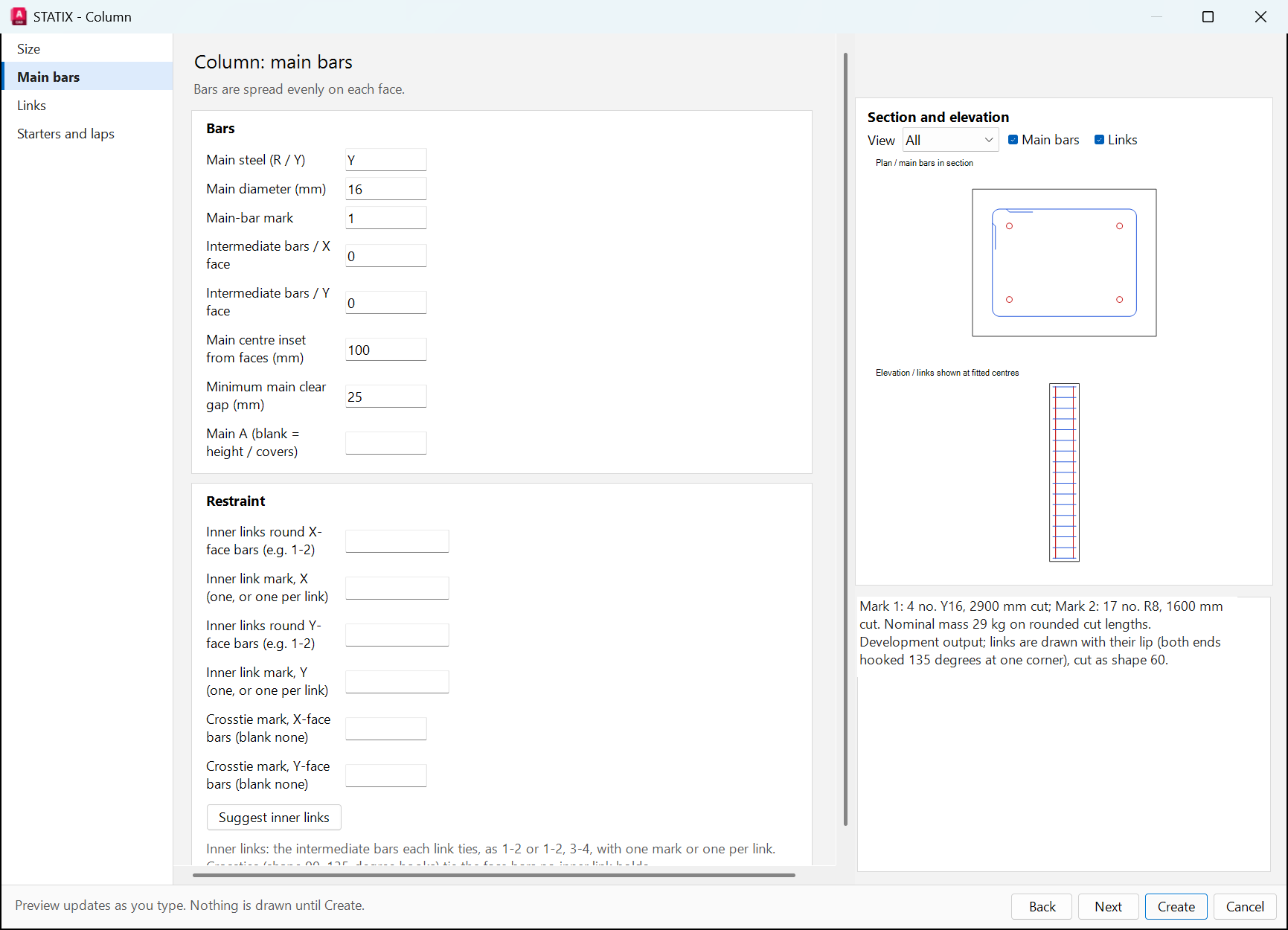
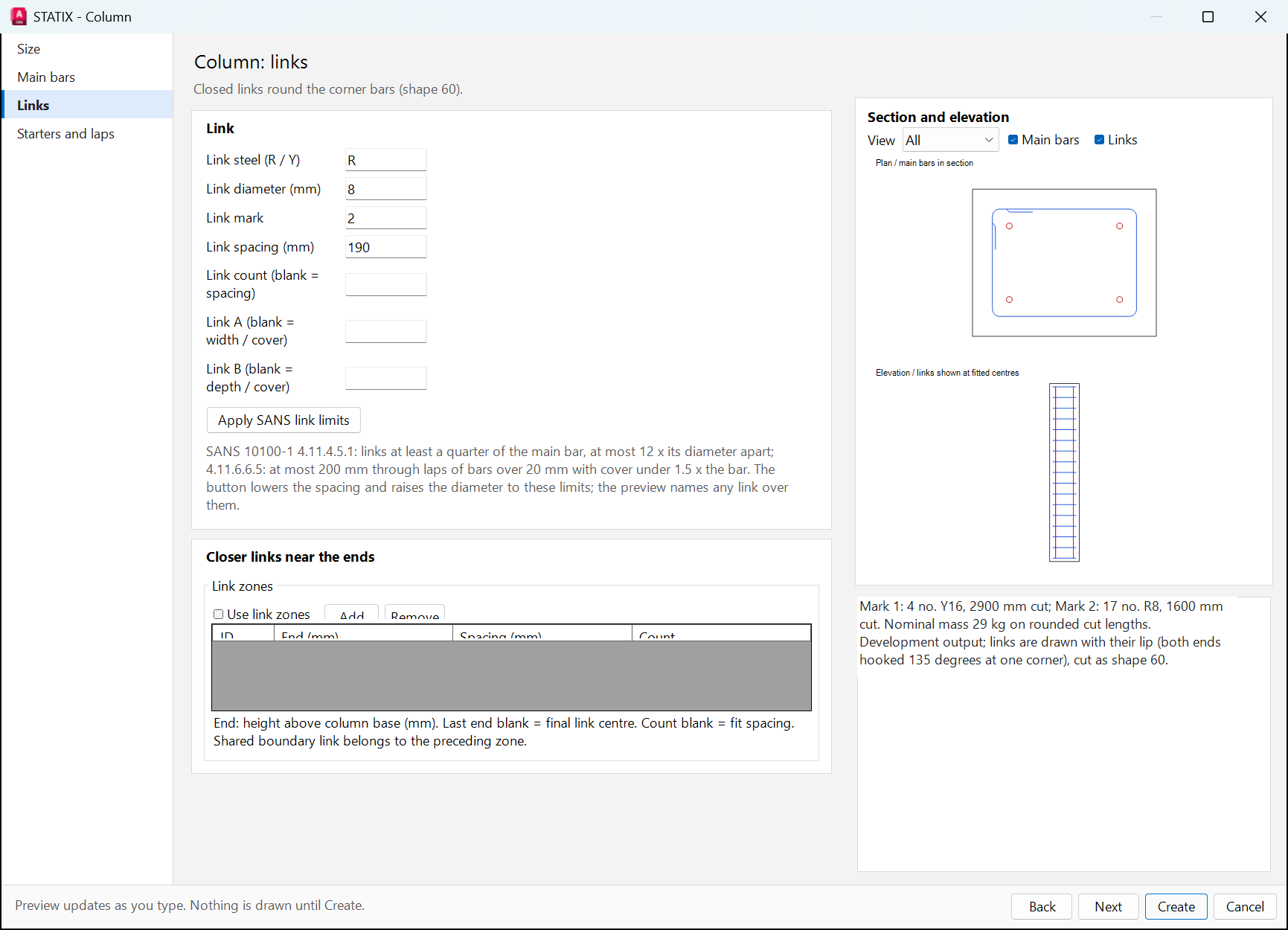
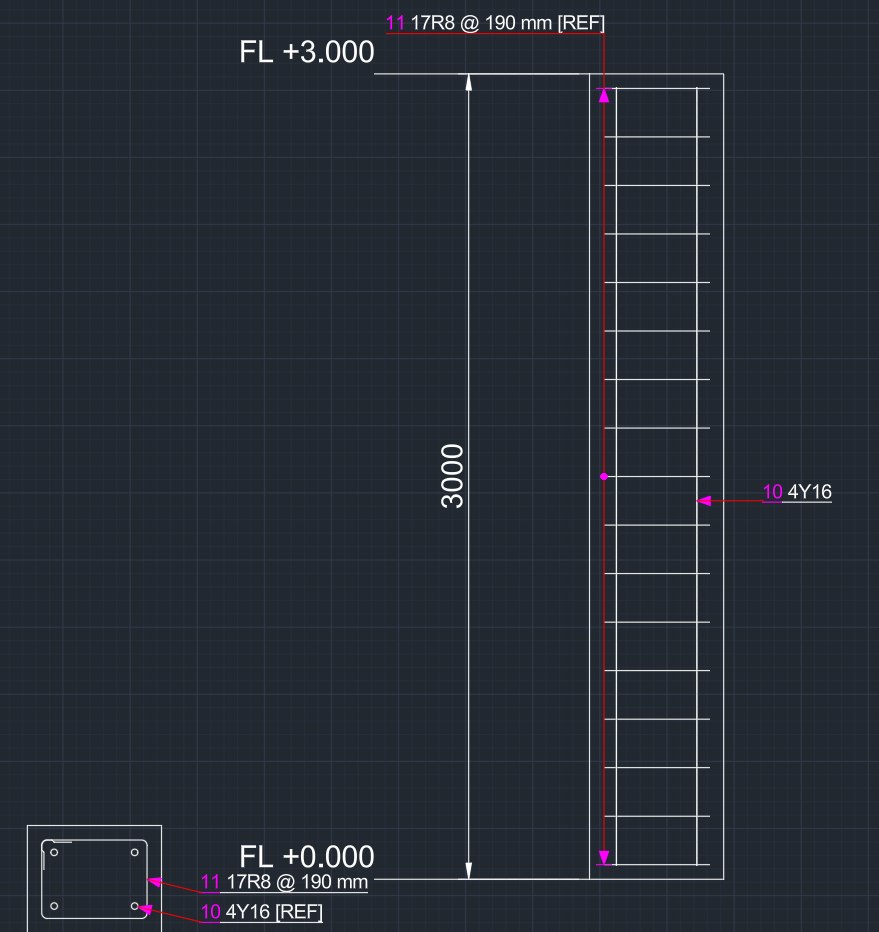
Rectangular and circular columns: main bars, links, starters and laps. The plan section and the elevation are placed and linked, and scheduled once.
Rectangular column STATIXCOLUMN
- Click Column. Pick the column base centre, then where the elevation goes.
- On Size, enter the design or sketch reference (required), the width, depth and height.
- On Main bars and Links, set steel, diameter, spacing and marks.
- Click Create.
Start from a column design file
- In the column window, on Size, click Open column file... and open a saved rectangular column design file.
- STATIX fills the size, the main bars (corner and face bars, and their inset), the link spacing, the height and the laps. A message lists what the file could not give, for example a corner chamfer.
- Check the values, enter the design reference, and wait for the preview.
07Beam
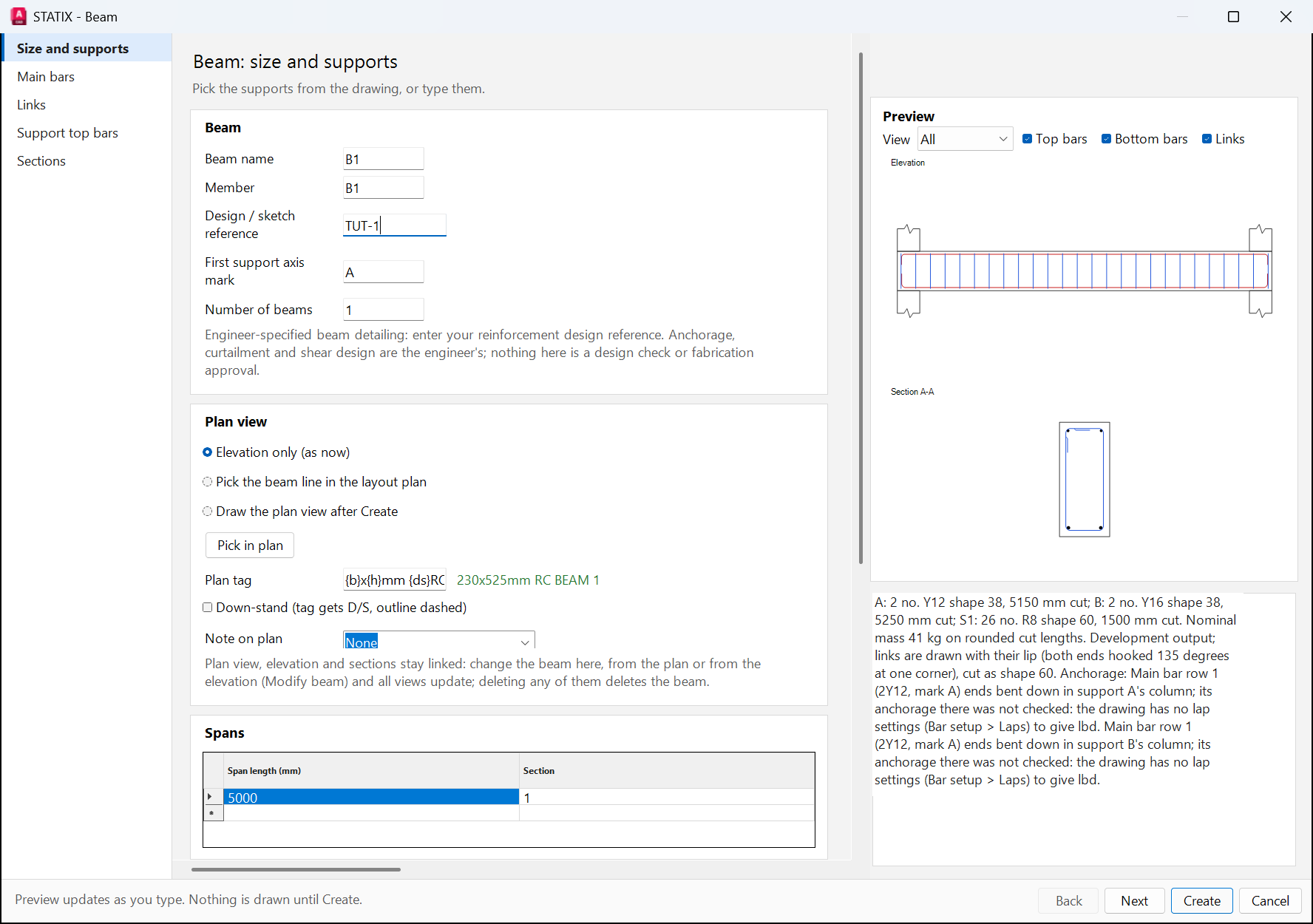
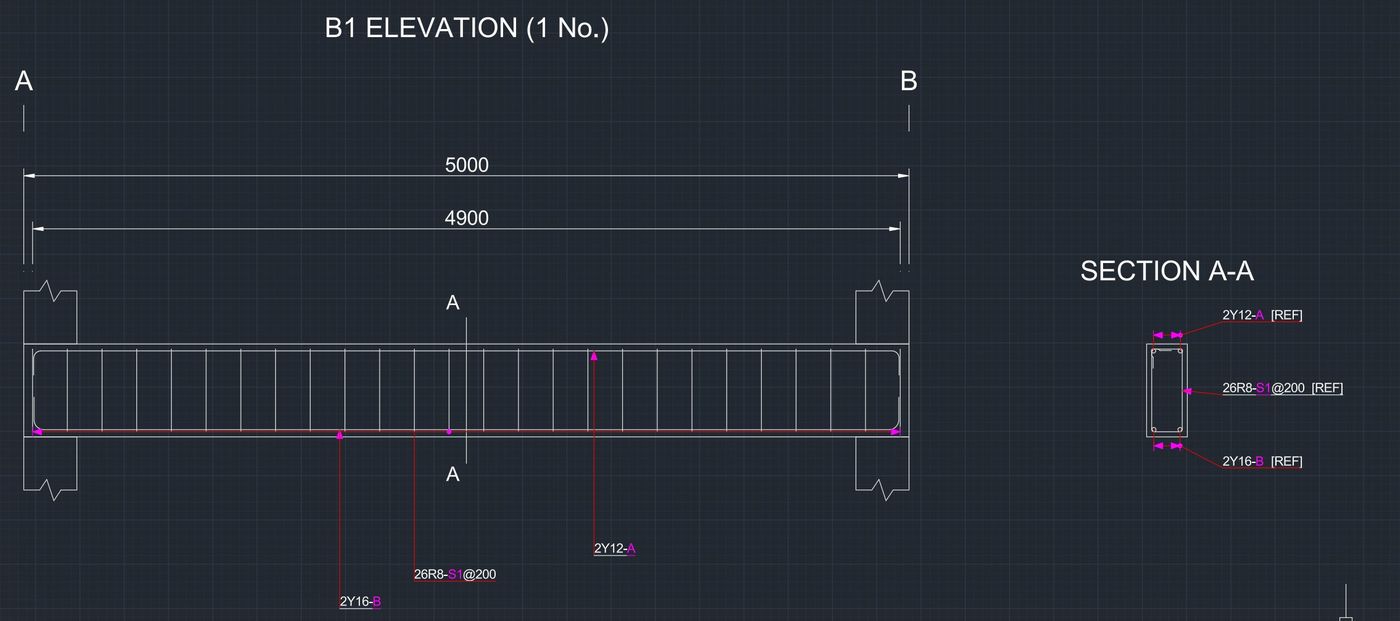
Spans, sections, supports, bar rows, side bars, link zones and section cuts. The elevation and its sections are placed together.
Detail a beam STATIXBEAM
- Click Beam. Pick the left end of the beam top, then the top centre of the first section.
- On Size and supports, enter the design reference and check the spans table.
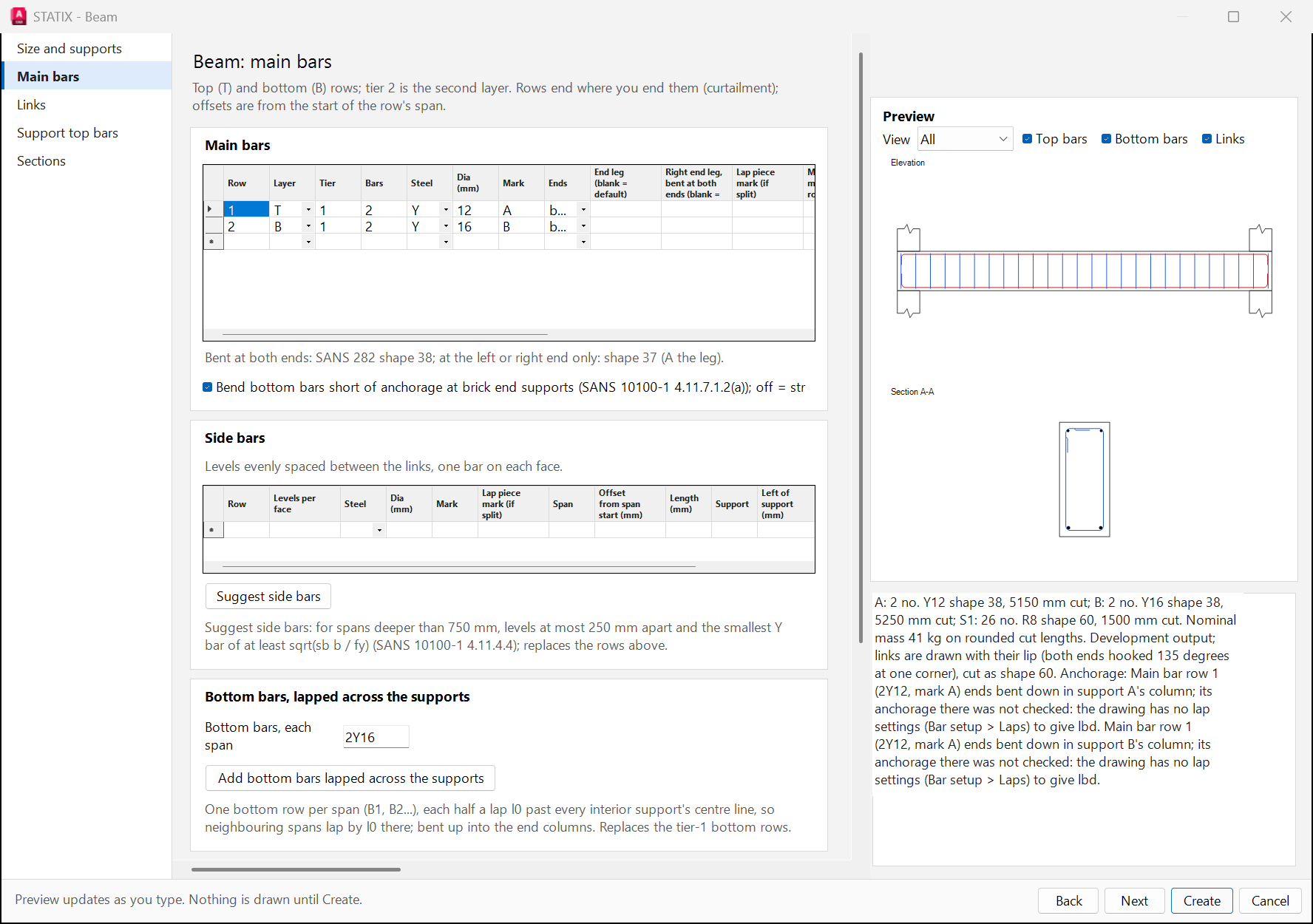
- On Main bars, edit the top (T) and bottom (B) rows: bars, steel, diameter and mark.
- Set links on Links and the section cuts on Sections. Click Create.
Start from a beam file
- In the beam window, on Size and supports, click Open beam file... and open a saved beam file.
- STATIX fills the spans, sections, supports, bar rows, link types and zones, and the section cuts. Bar rows that run past their span are shortened, and a message says which.
- Check the values, then Update preview.
08Base and pile cap
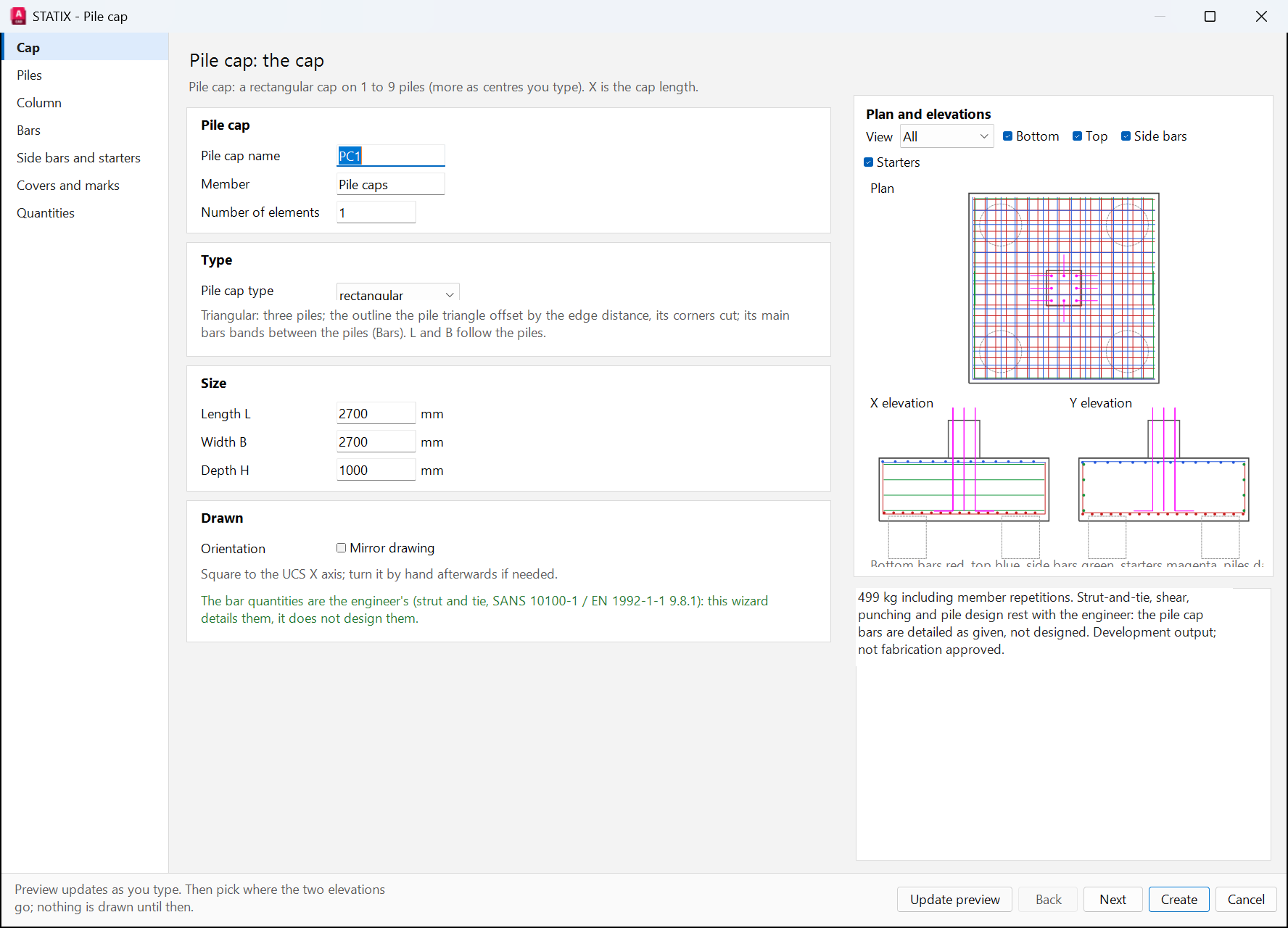
Pad bases with zero, one or two columns, and pile caps on 1 to 9 piles. Both are on the Base button and its ▾ menu.
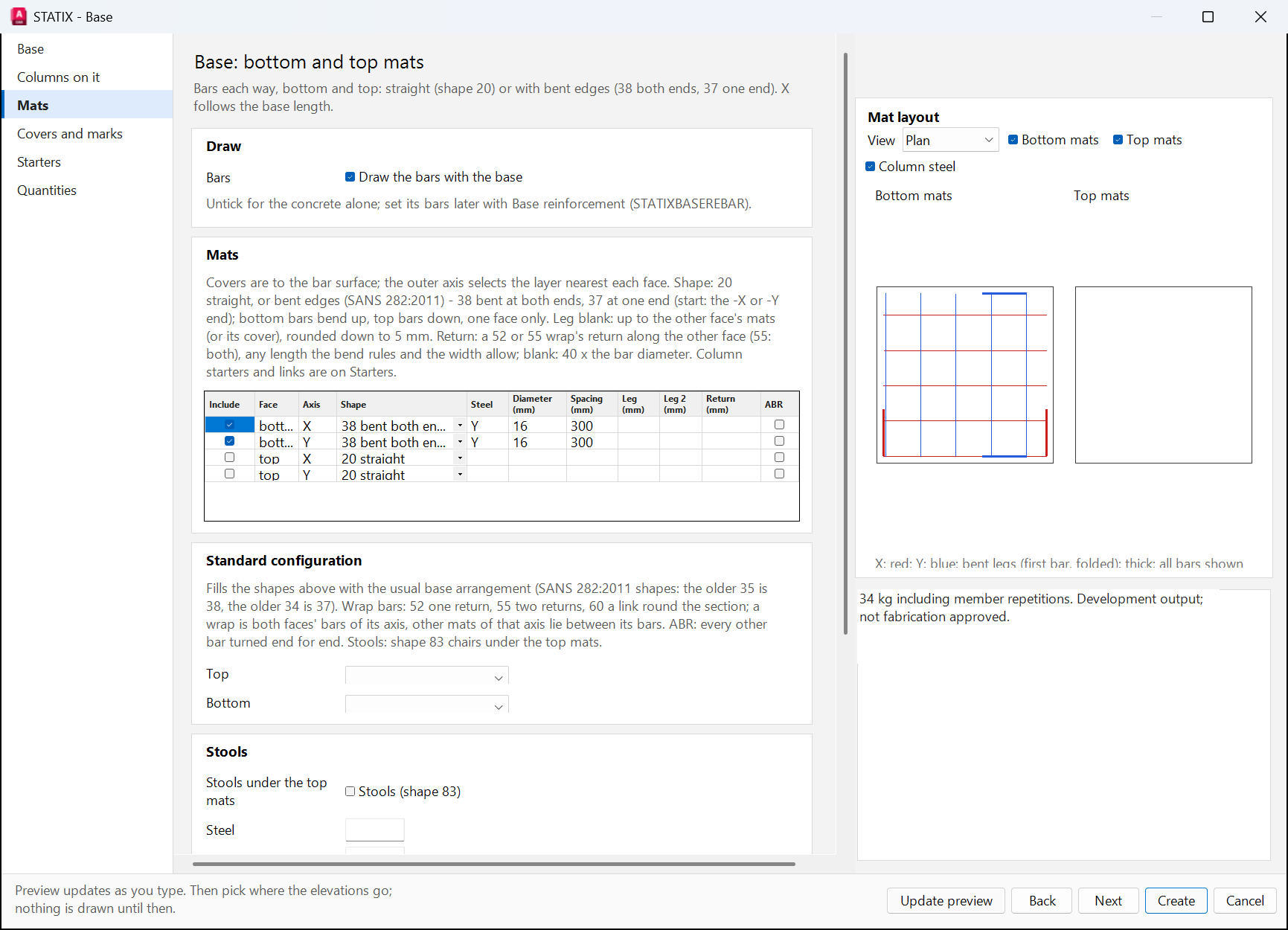
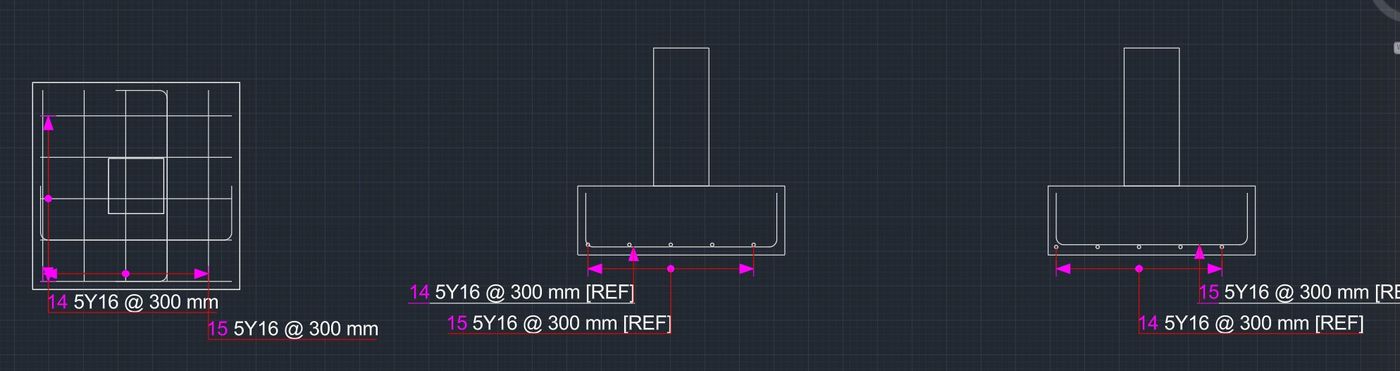
Pad base STATIXBASE
- Click Base and pick the base top centre.
- On Base: name F1, member BASES, 1500 × 1500 × 500. On Columns on it: a 400 × 400 column, 1000 high.
- On Mats, tick which mats to draw and their shapes. Click Create, then pick where the X and Y elevations go.
Start from a base design file
- In a new base's window, on Base, click Open base file... and open a saved base design file.
- STATIX fills the size, the columns or stubs, the mats and their configuration, the covers and the column starters.
- The file has no starter foot or link bar size: enter them on Starters. A message lists anything else the file could not give.
09Stair
Single or return flights. The wizard proposes the standard main bar arrangement from the geometry and places the stair with its bars.
Place a stair STATIXSTAIRPLAN
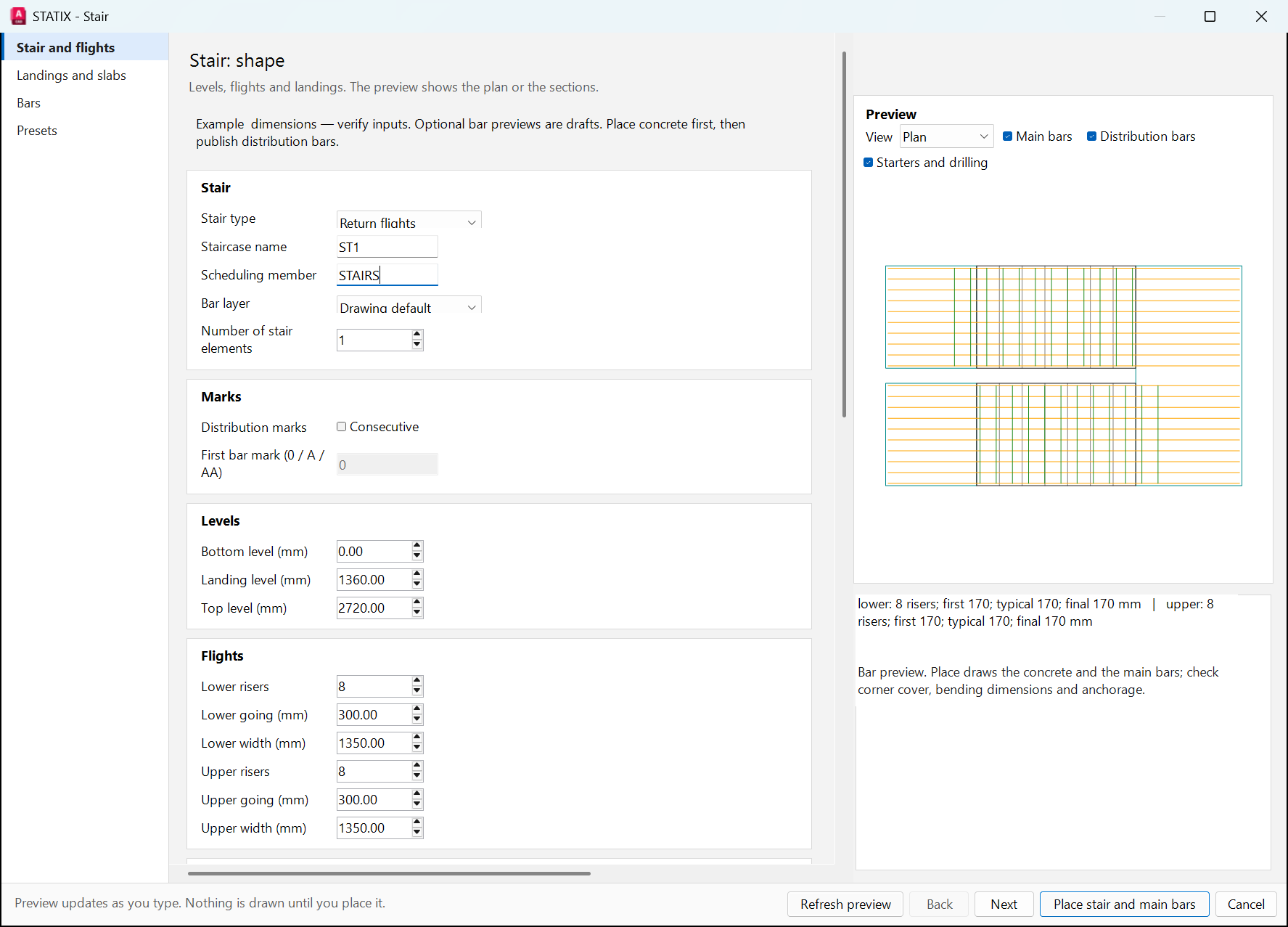
- Click Stair. On Stair and flights, choose the stair type, name and scheduling member, levels and flights.
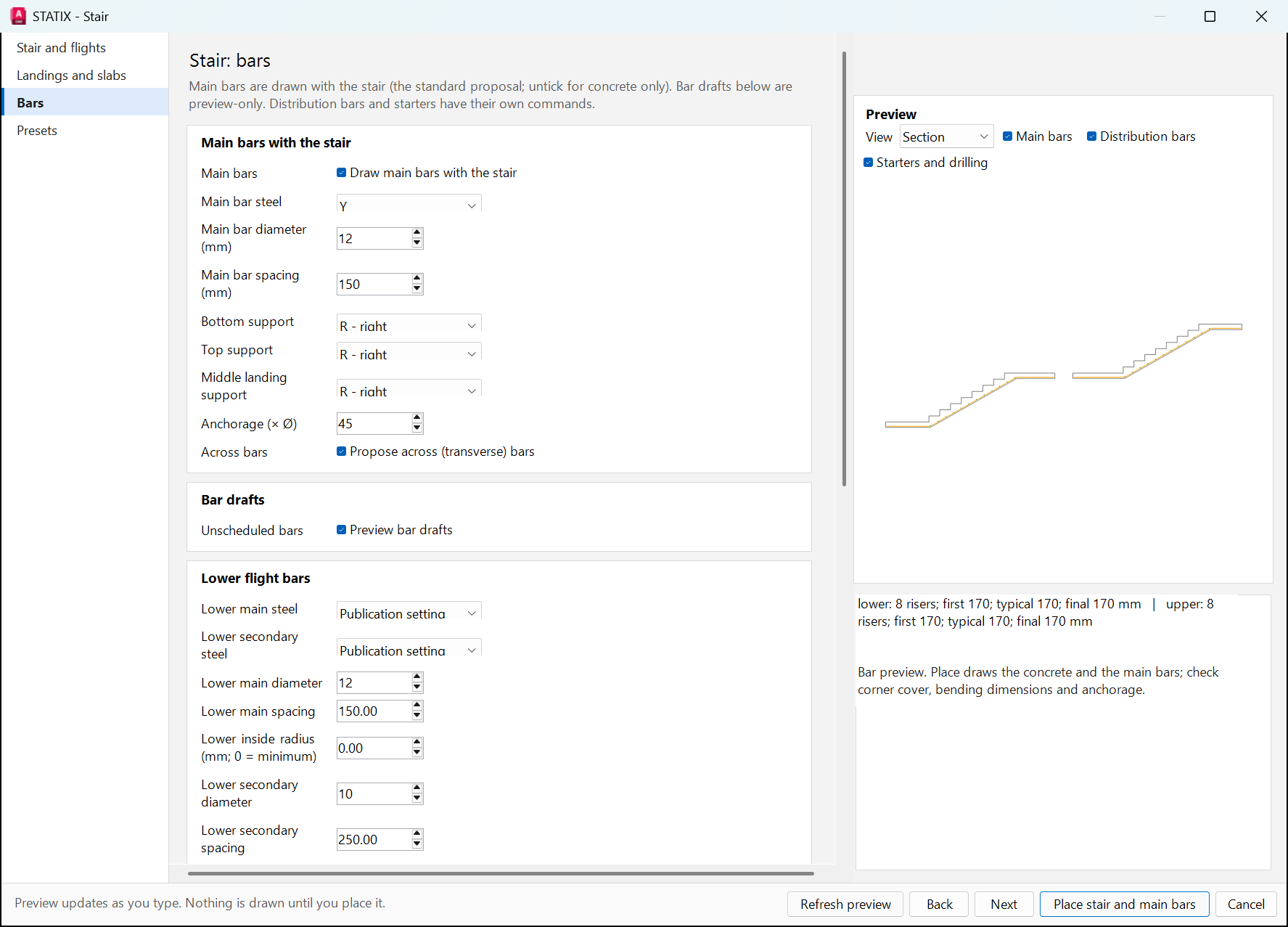
- On Bars, keep Draw main bars with the stair ticked and set the bar size, spacing, supports and anchorage. The preview shows the bars straight away.
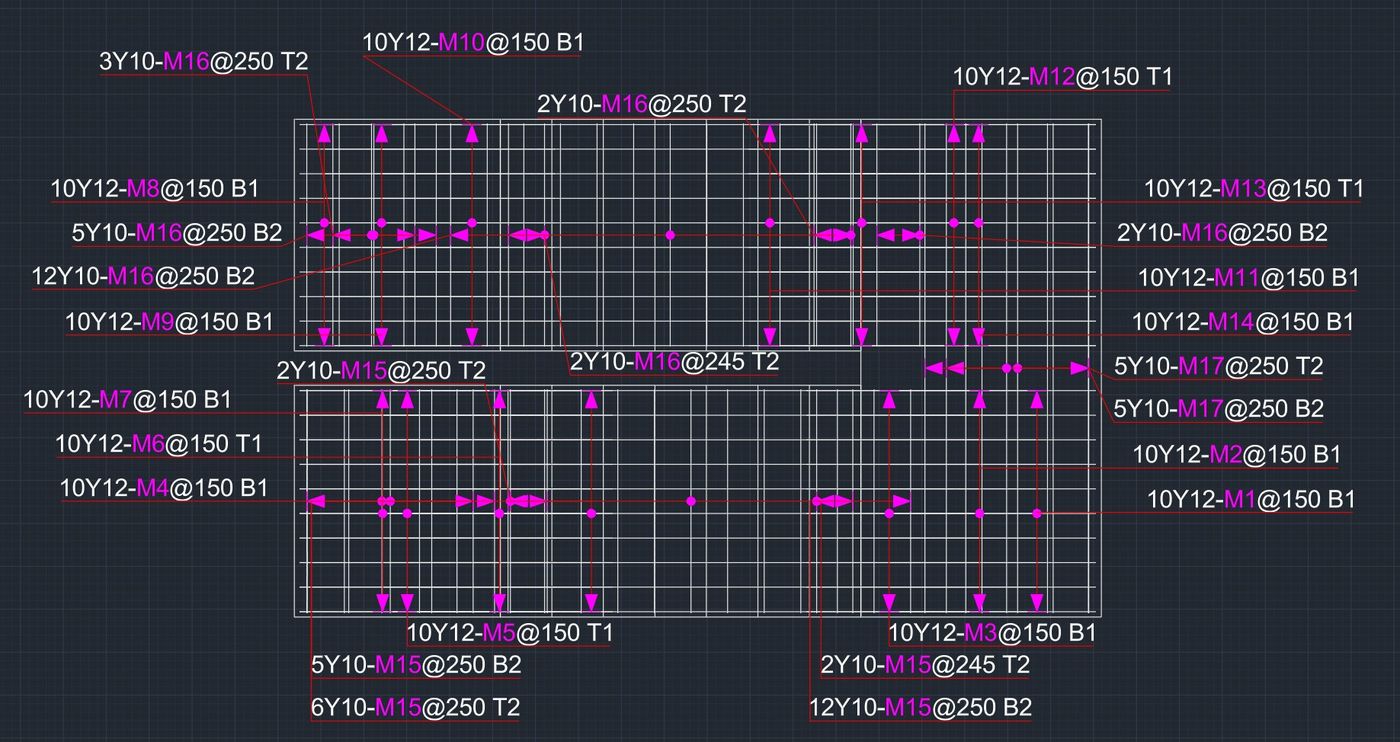
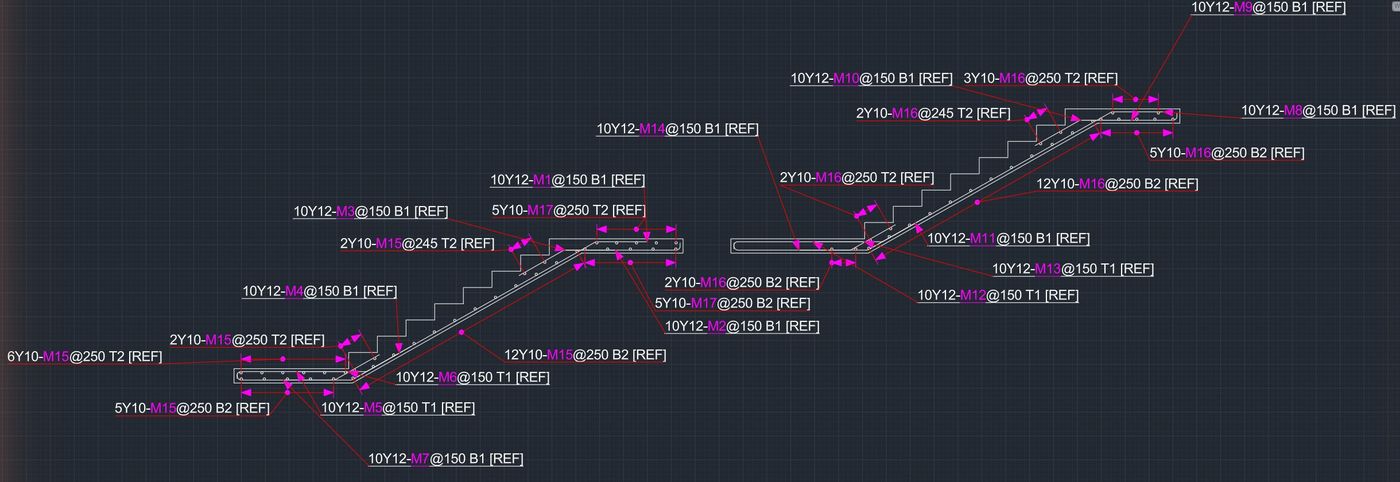
- Click Place stair and main bars. Pick where the plan goes, then where the sections go.
10Opening and corner details
Trimmer bars round slab openings, and L-bars, U-bars or diagonals at wall corners and junctions.
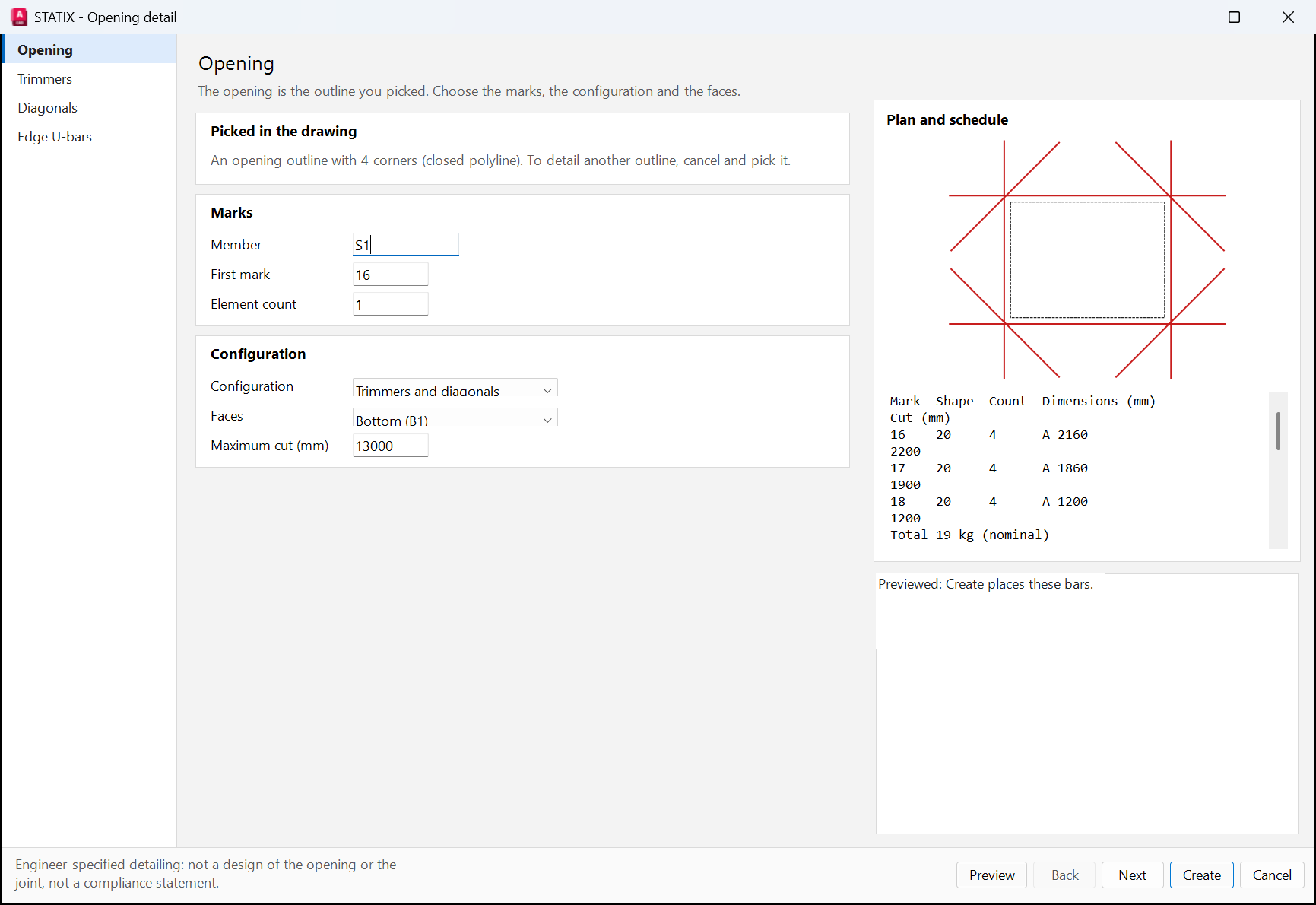
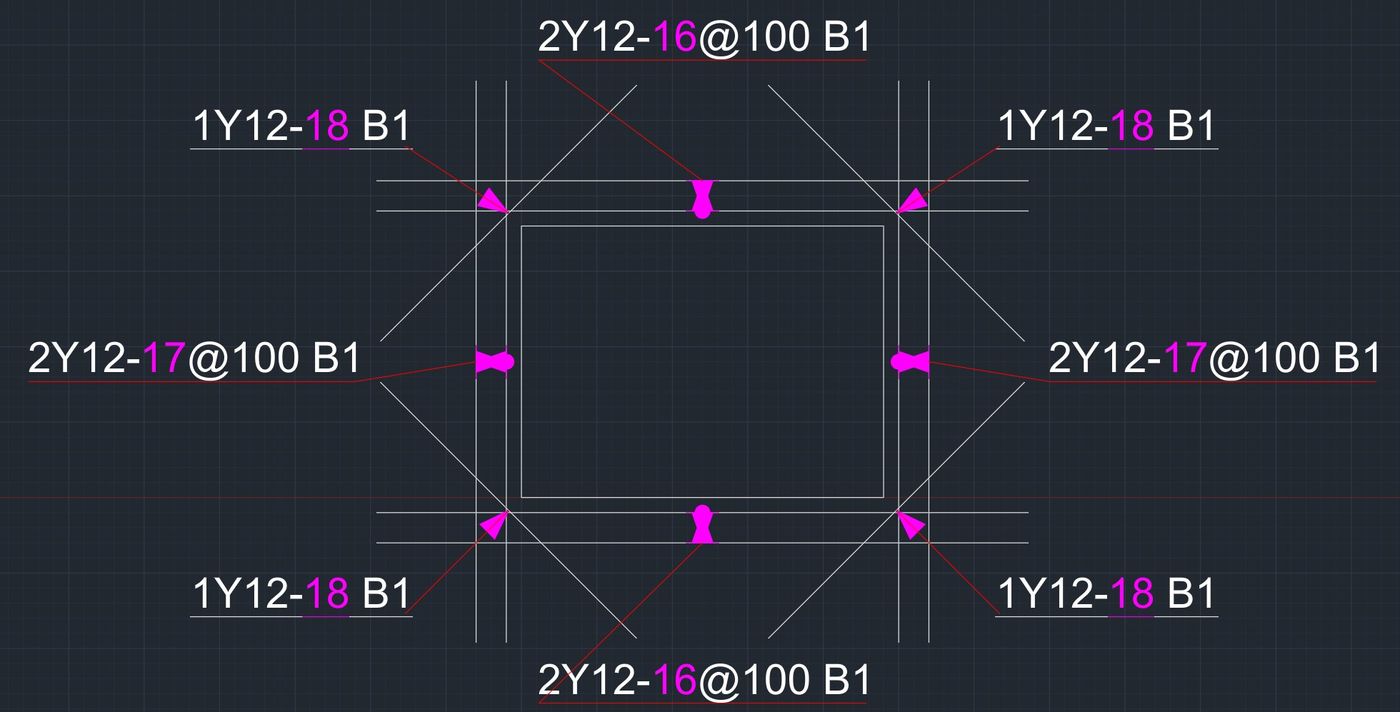
Opening STATIXOPENING
- Draw the opening as a closed polyline or circle. Click Opening and pick it.
- Set the member, configuration (trimmers and diagonals) and faces. The plan and the list of marks and lengths update as you type. Click Create.
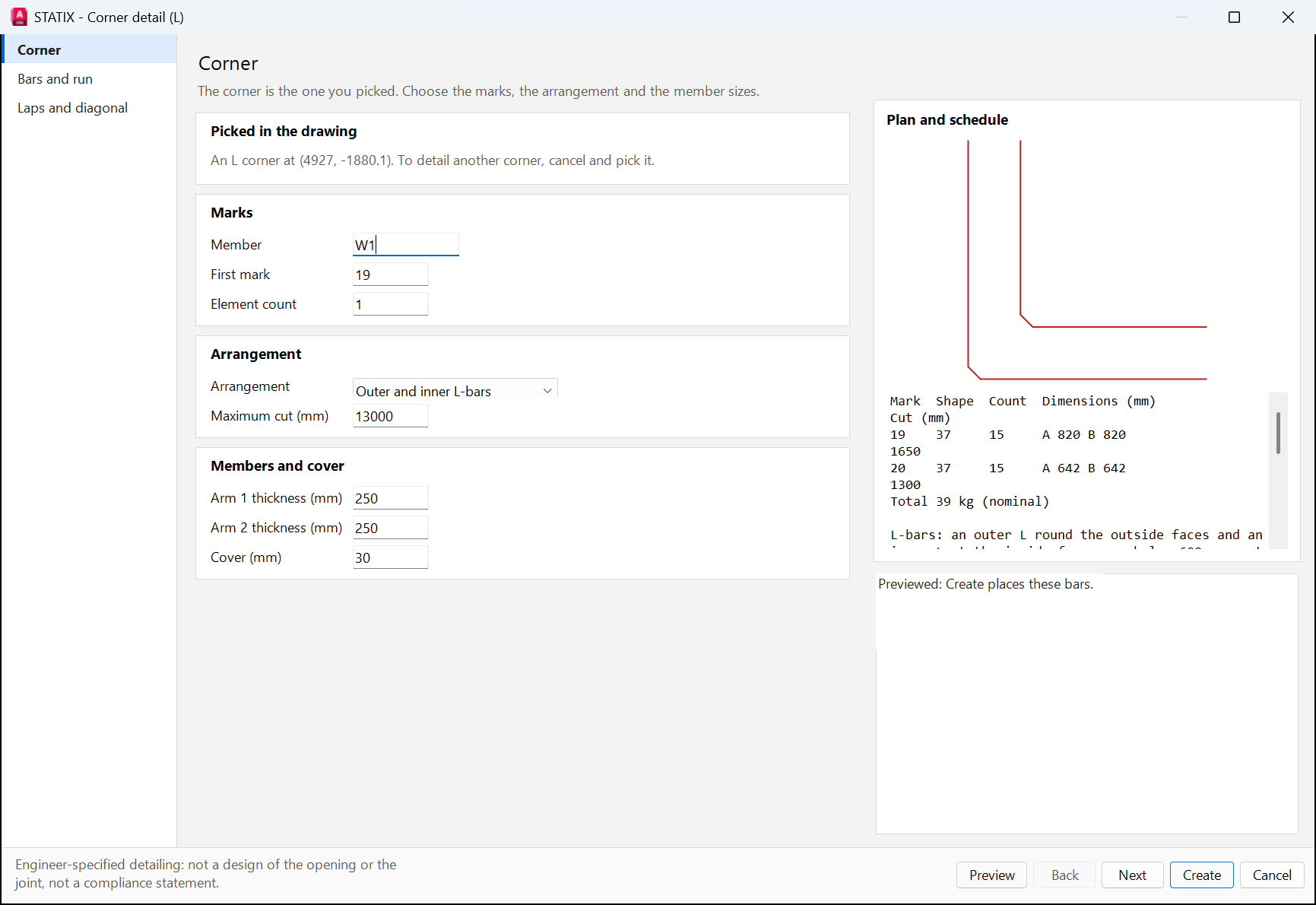
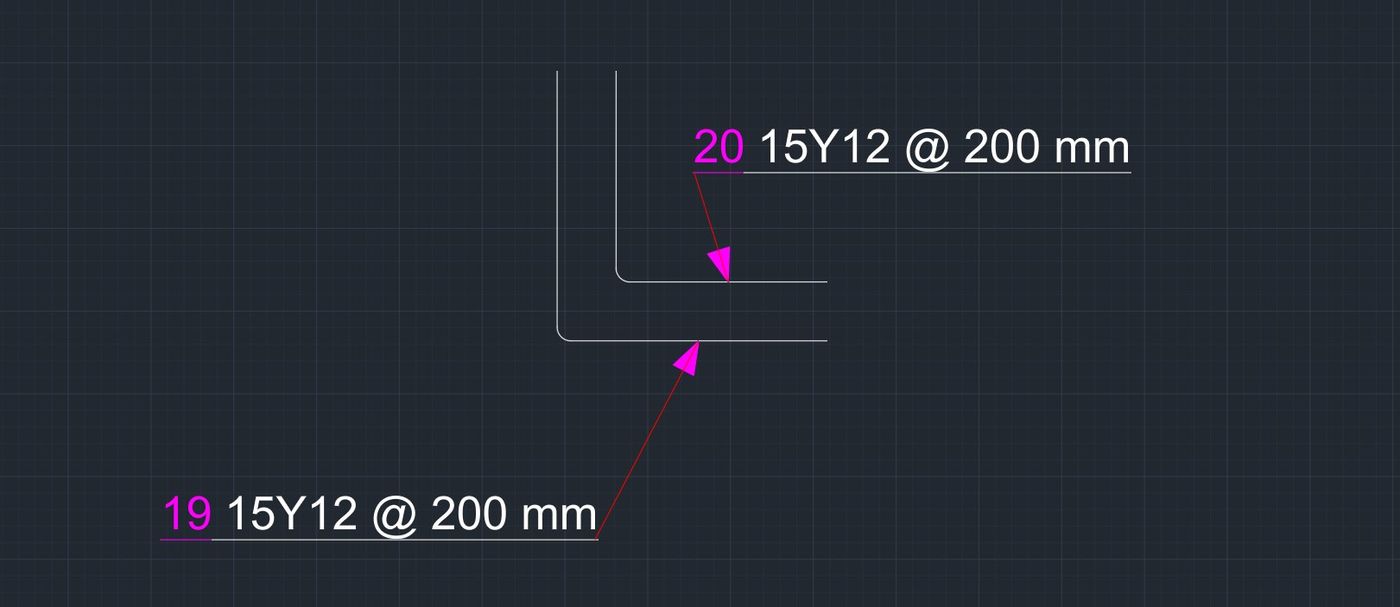
Corner STATIXCORNER
- Click Corner and choose the type: L, T or X.
- Pick the corner point where the outside faces meet, then a point along each arm.
- Set the member, arrangement, arm thicknesses and cover. Check the plan, then click Create.
11Retaining wall
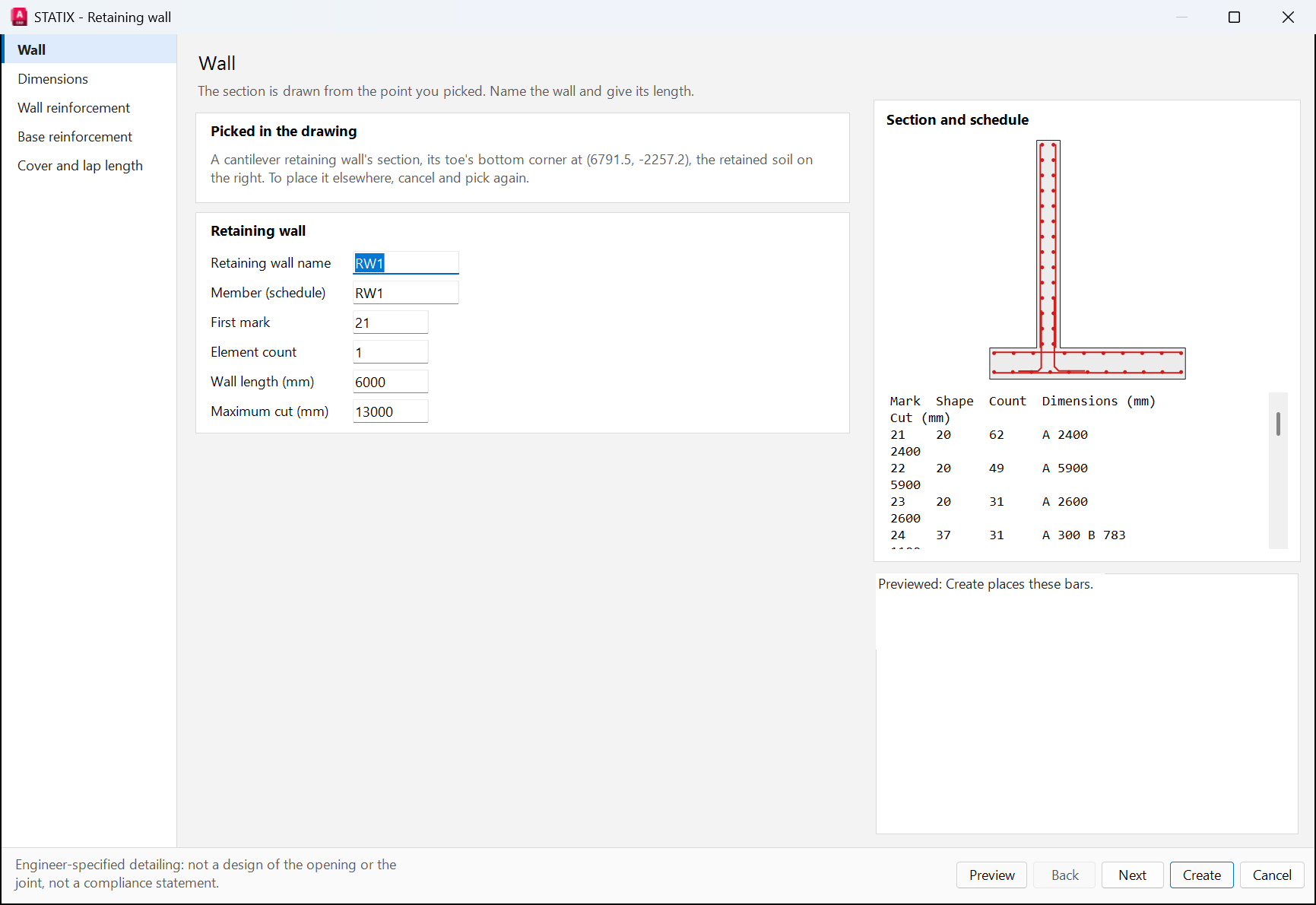
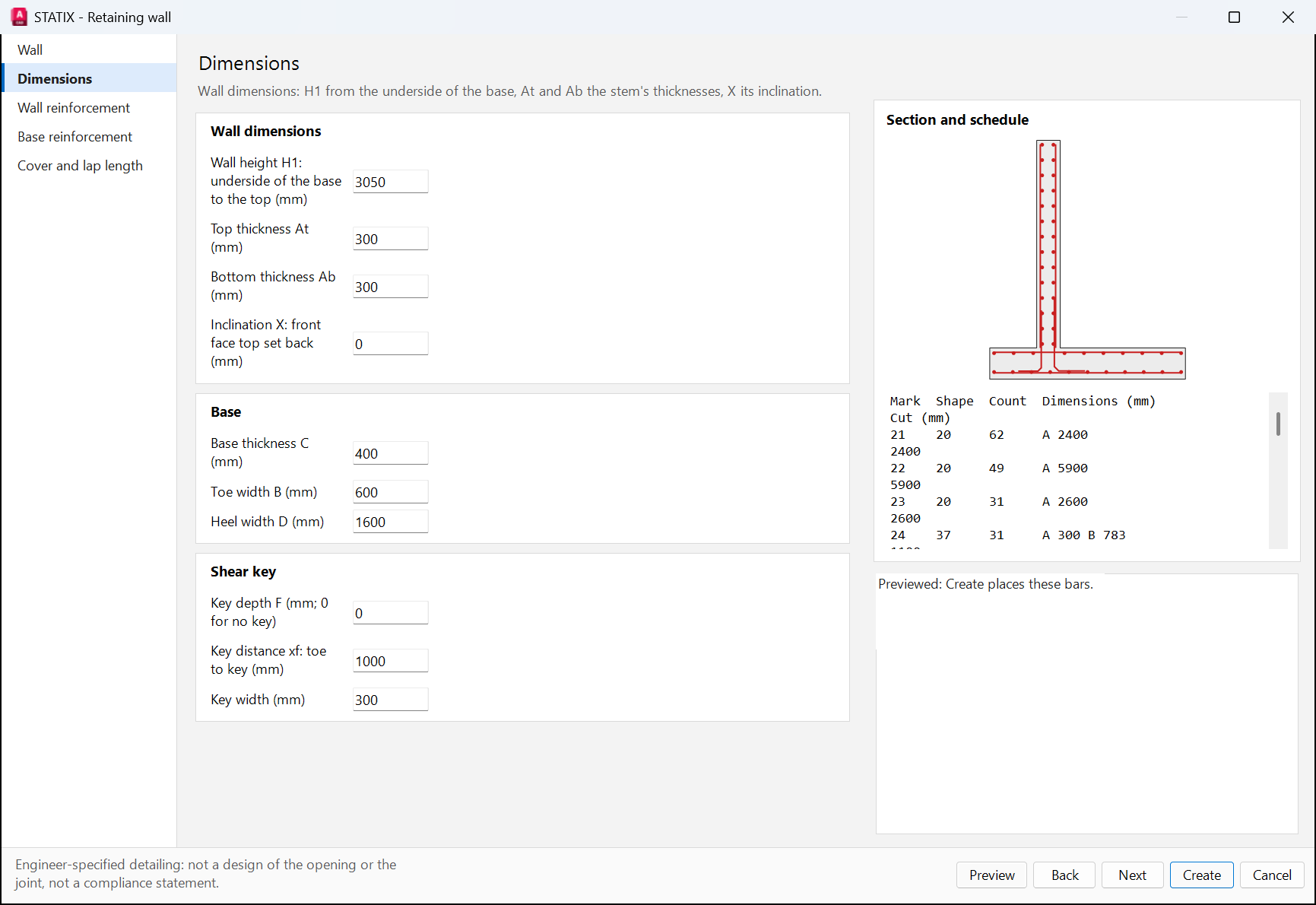
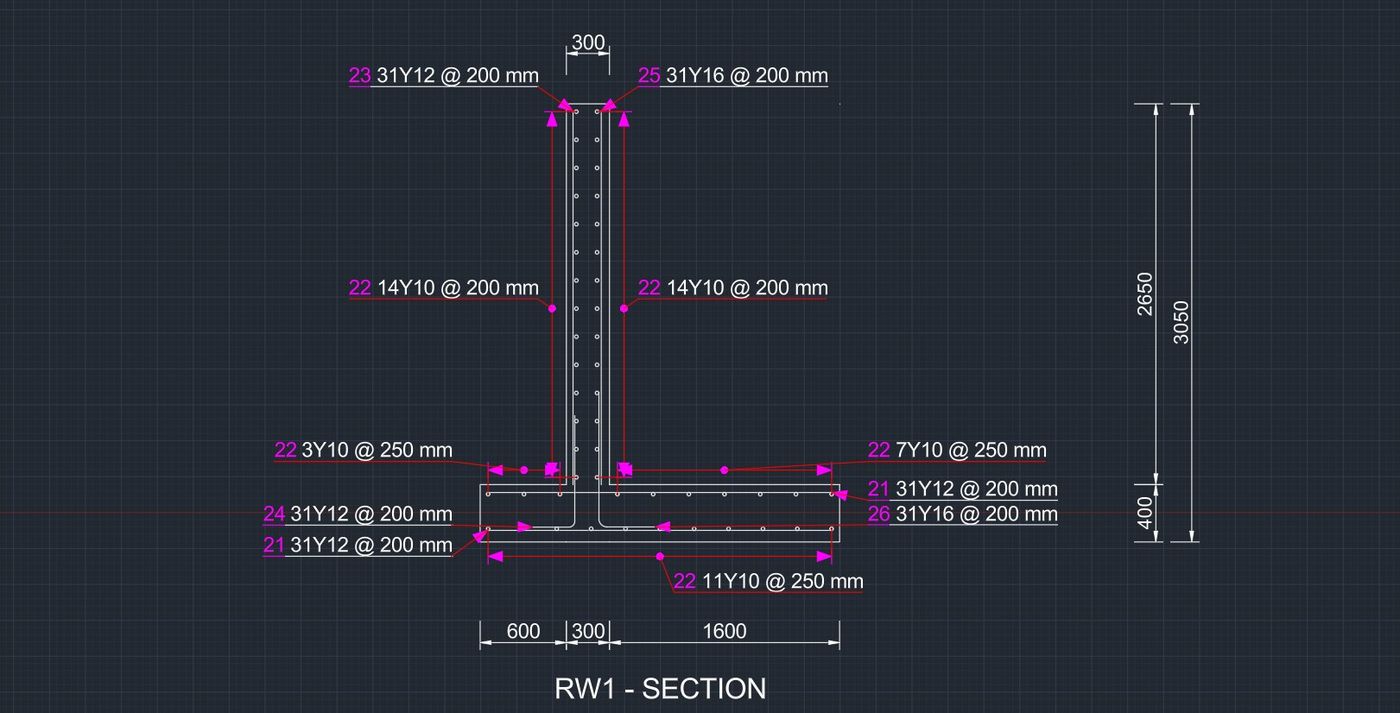
A cantilever retaining wall section with all its bar groups, from two picks.
Draw a wall STATIXRETAININGWALL
- Click Retaining wall. Pick the toe's bottom corner (underside of the base, front face).
- Choose the retained soil side: Right or Left.
- Check the pages: wall, dimensions (H1, At, Ab, X, C, B, D), wall and base bars, cover and lap. Click Create.
12House
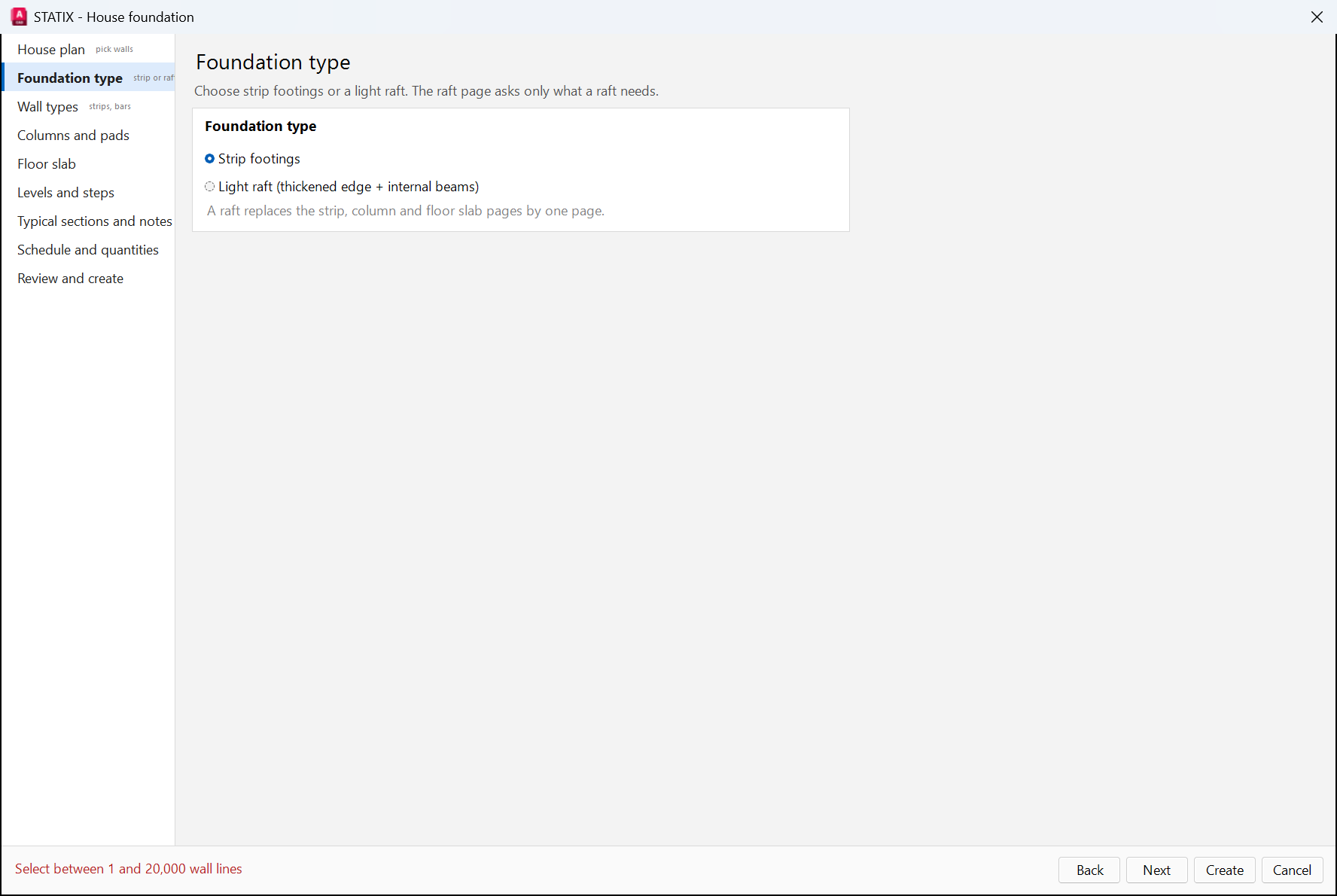
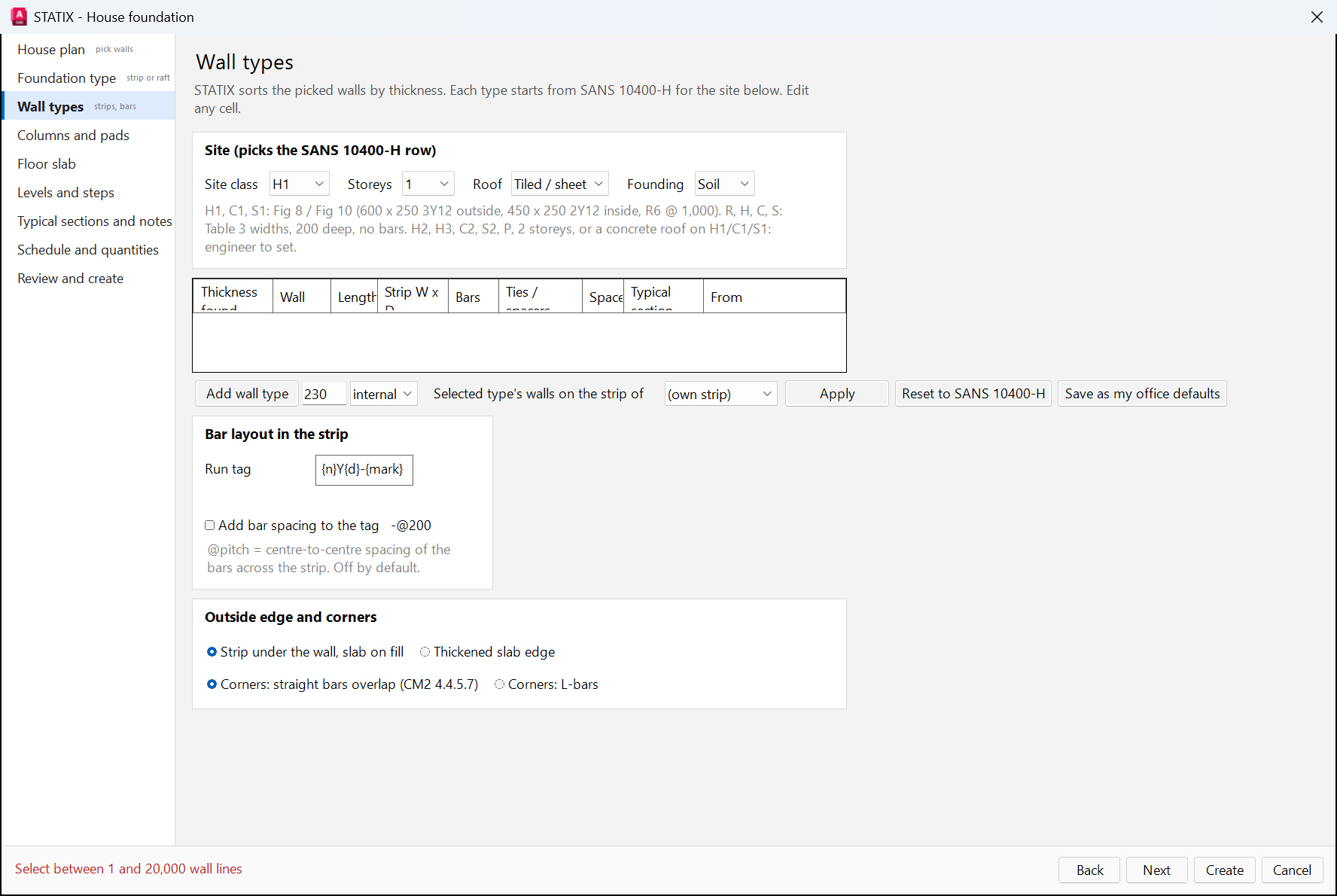
A full house foundation from a floor plan: strip footings per level with steps, pads, the floor slab mesh and typical details. Start values come from SANS 10400-H.
Detail a house STATIXHOUSE
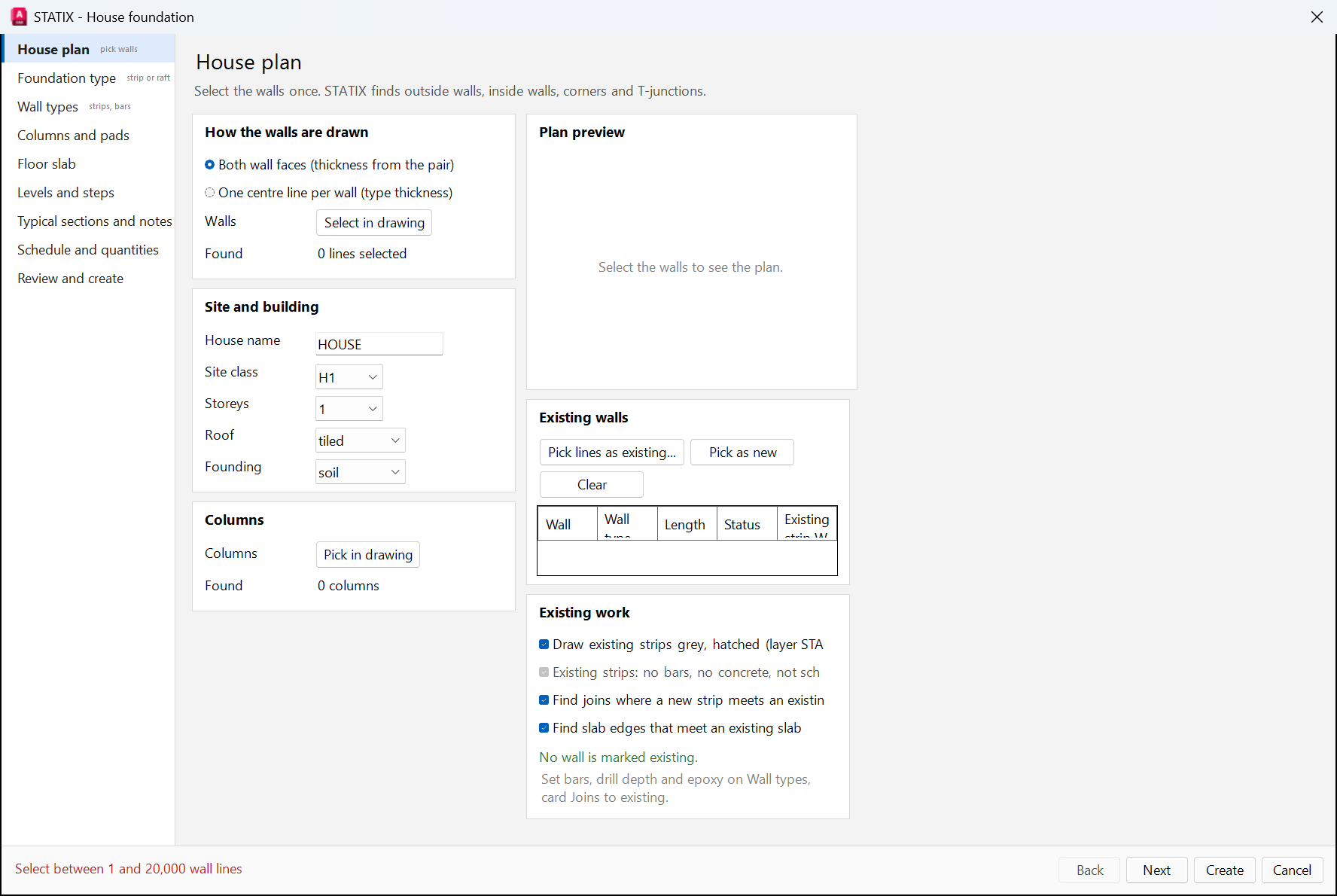
- Draw the walls: both wall faces, or one centre line per wall.
- Click House. On House plan, click Select in drawing and pick the walls, then the columns.
- Work down the pages: foundation type (strips or a light raft), wall types, columns and pads, floor slab, levels and steps, sections, schedule. Click Create.
13Single bars
For anything the wizards do not cover, place bars yourself and edit them in one window.
Add a bar STATIXADDBAR
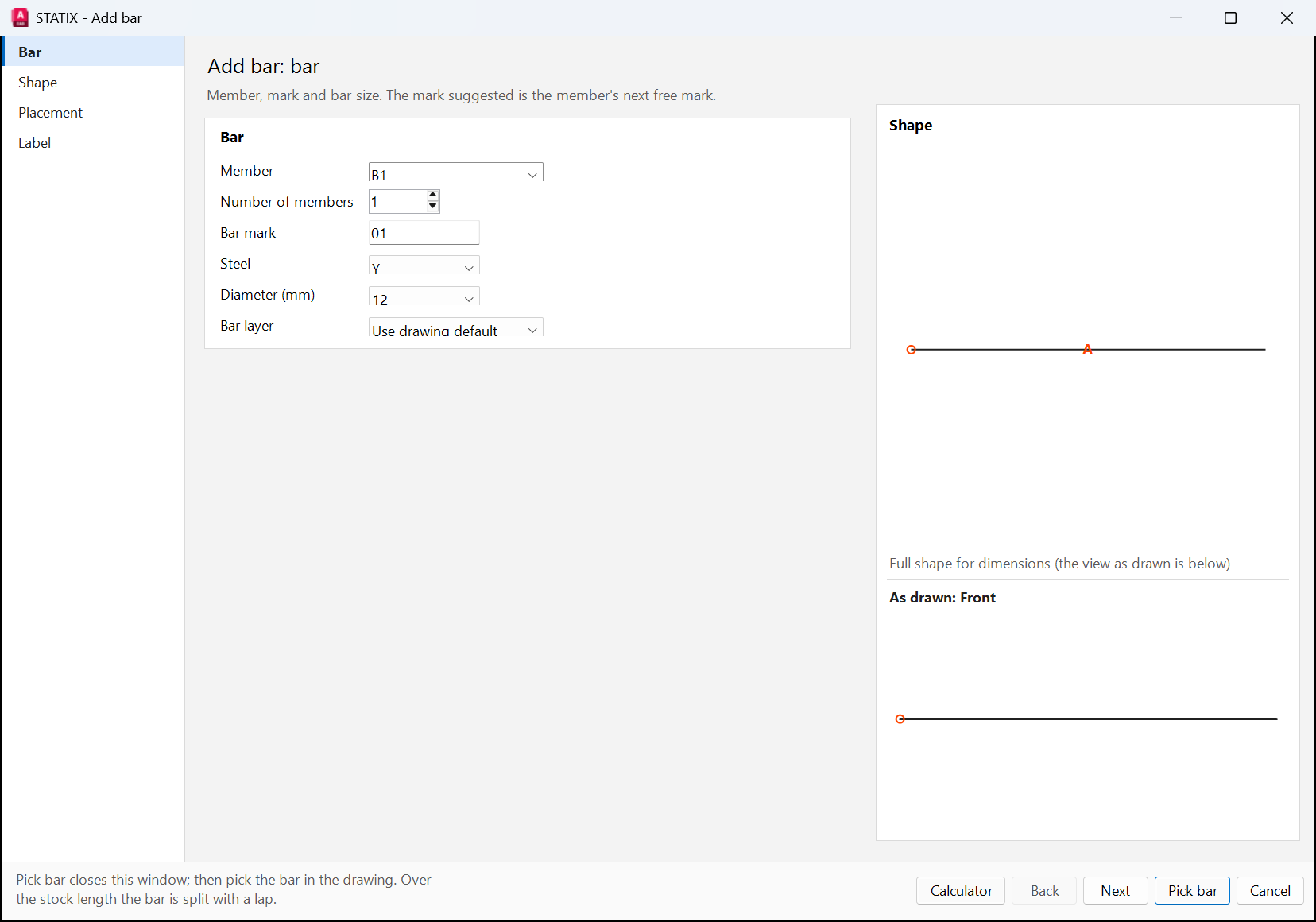
- Click Add bar. On Bar, check the member and mark (the next free mark is suggested), steel and diameter.
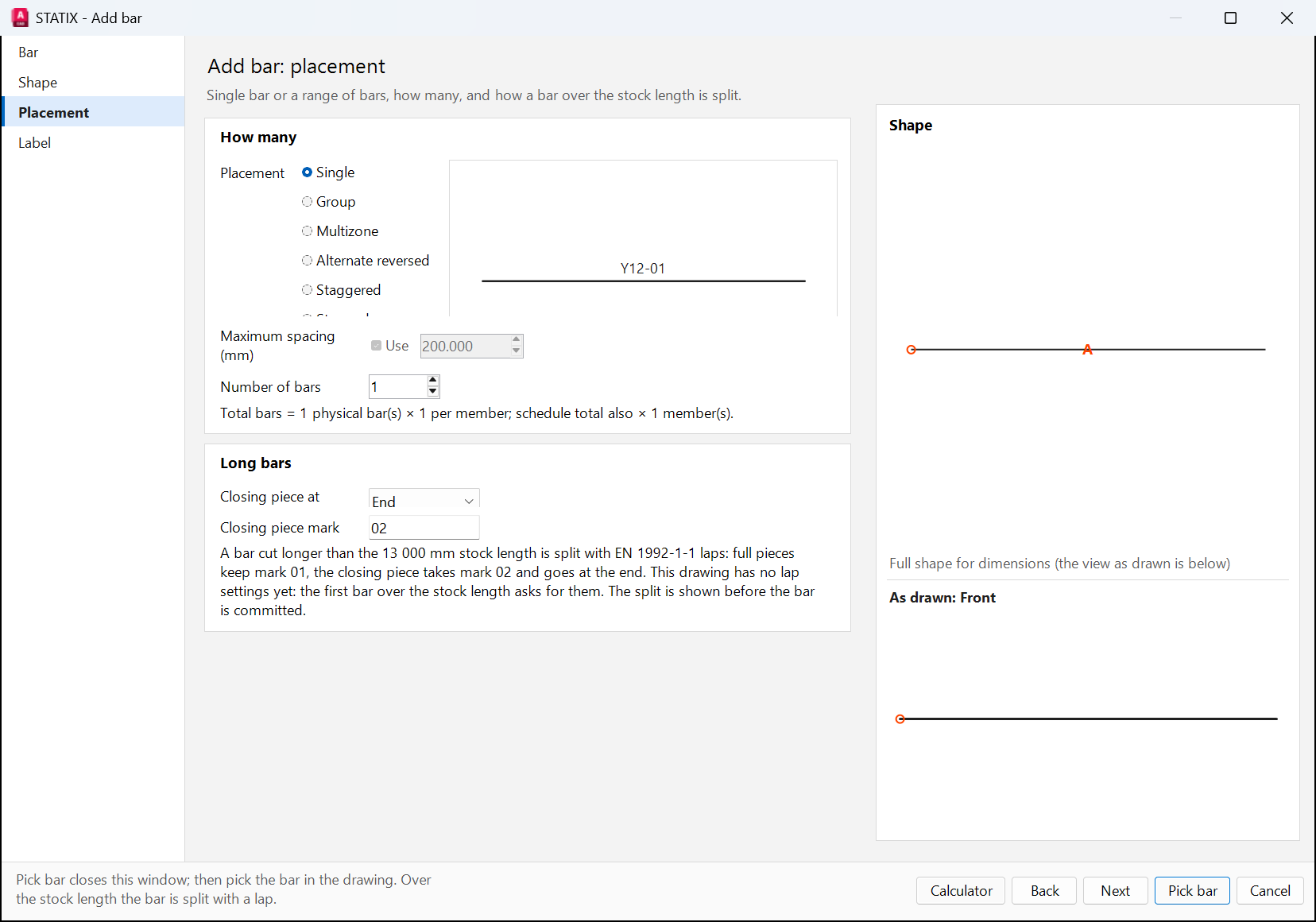
- On Shape, choose the SANS 282 shape code. On Placement, choose a single bar, a group, a multizone, staggered, stepped or fanned bars.
- Click Pick bar. Pick the start and end in the drawing, then the label position. Answer the cover question.
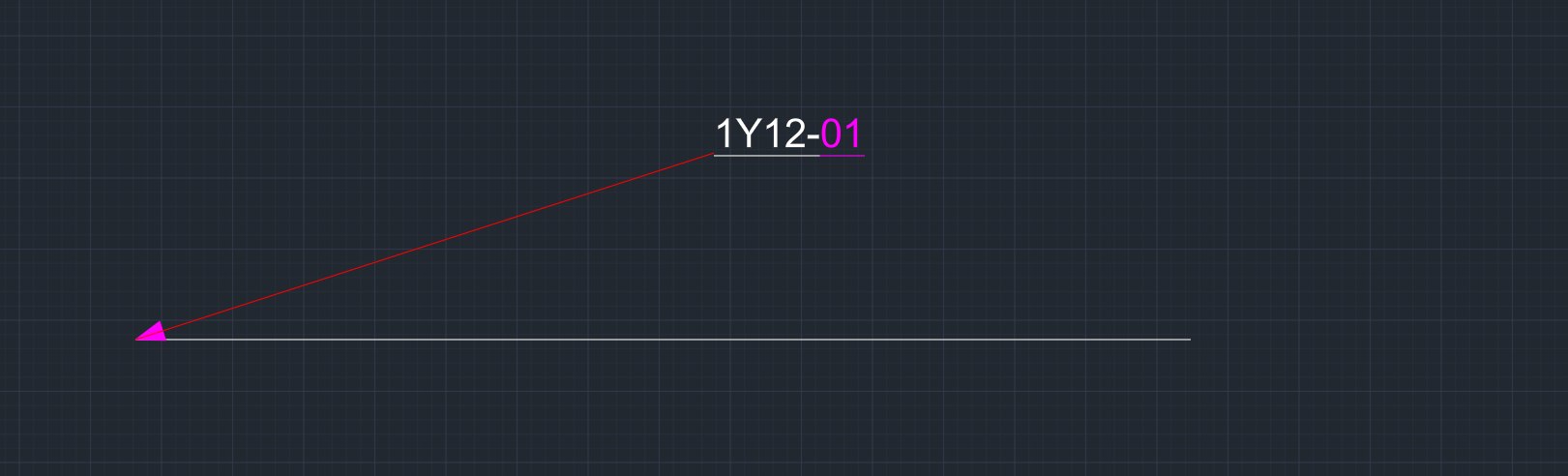
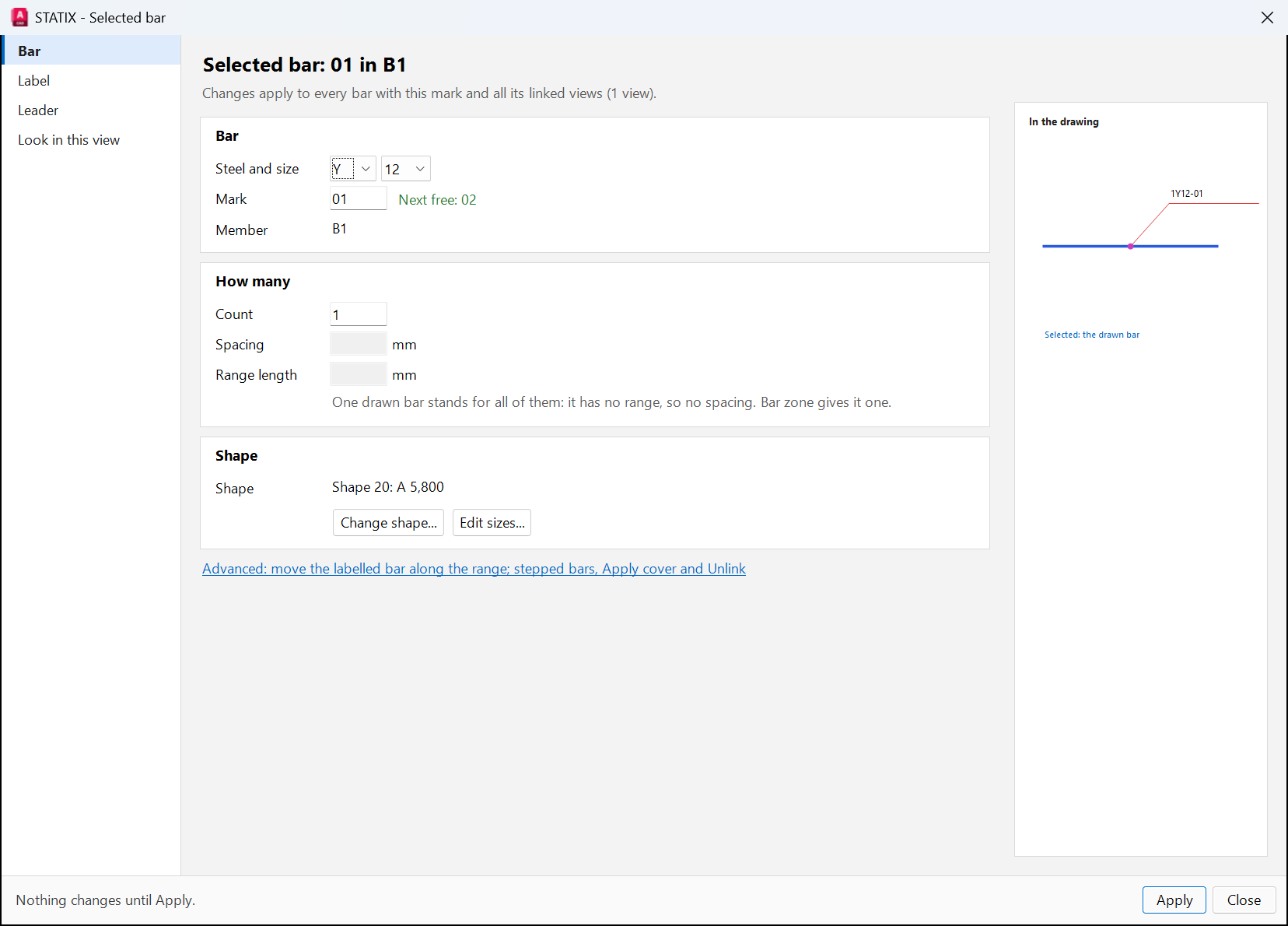
Edit a bar STATIXSELECTEDBAR
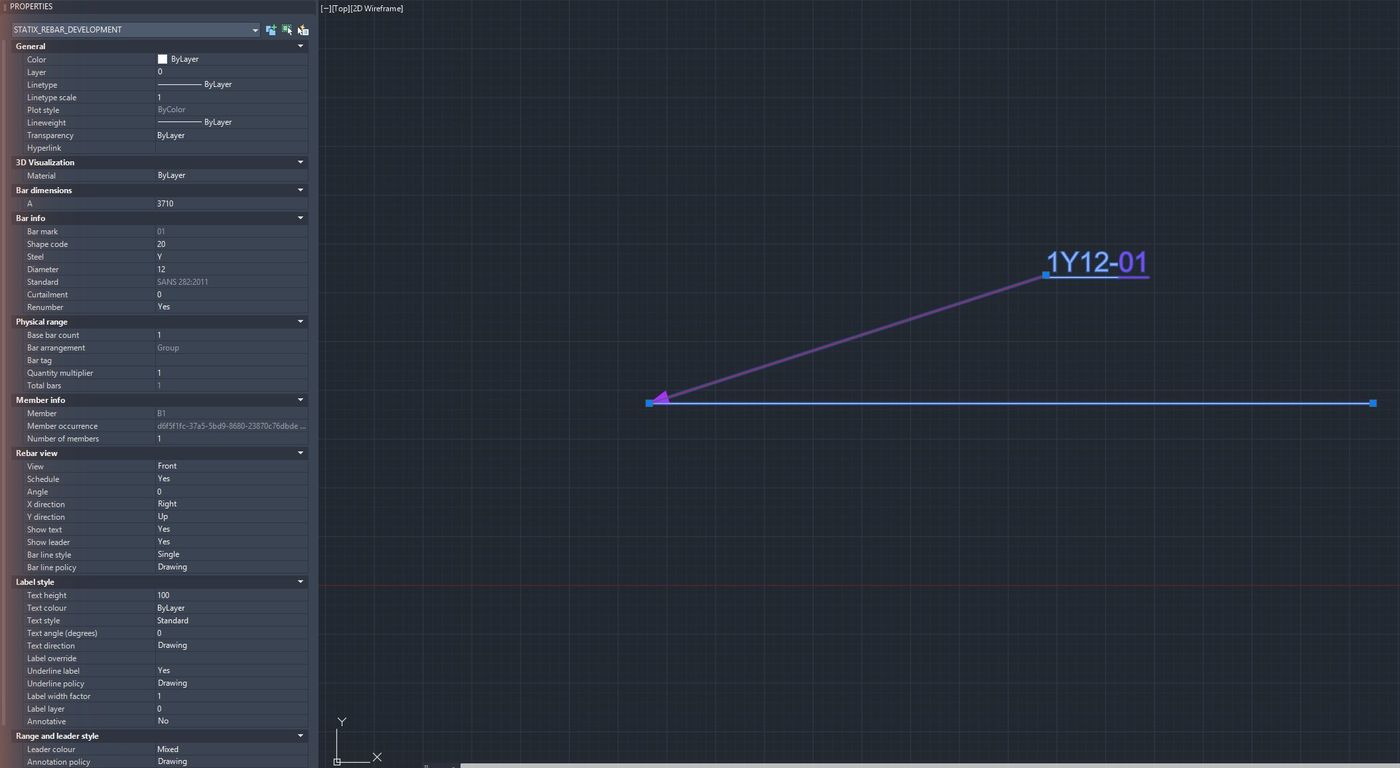
Double-click any STATIX bar to open Selected bar. It holds the steel, size, mark, count, spacing, range and shape, and the label, leader and look in this view. Nothing changes until you click Apply. You can also select a bar and edit it in the AutoCAD Properties palette.
14Bending schedule
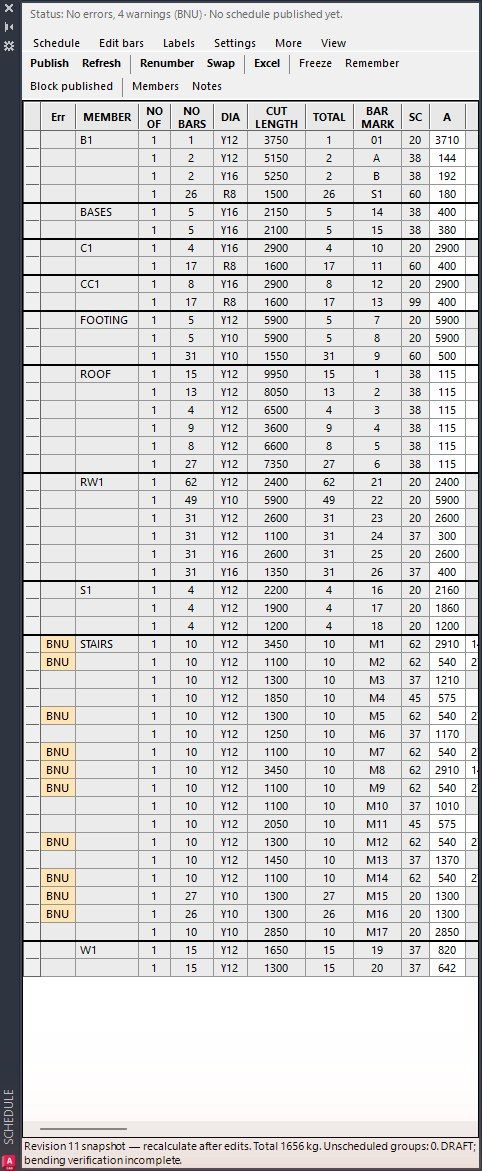
Every bar you place is scheduled. Check the rows, publish the tables, put them on sheets and export them.
Check the rows STATIXSCHED
Click Scheduler. The palette lists every member and bar with its cut length and shape dimensions. Rows with a warning are marked in the Err column. The status line gives the total mass.
Publish STATIXSCHEDULE
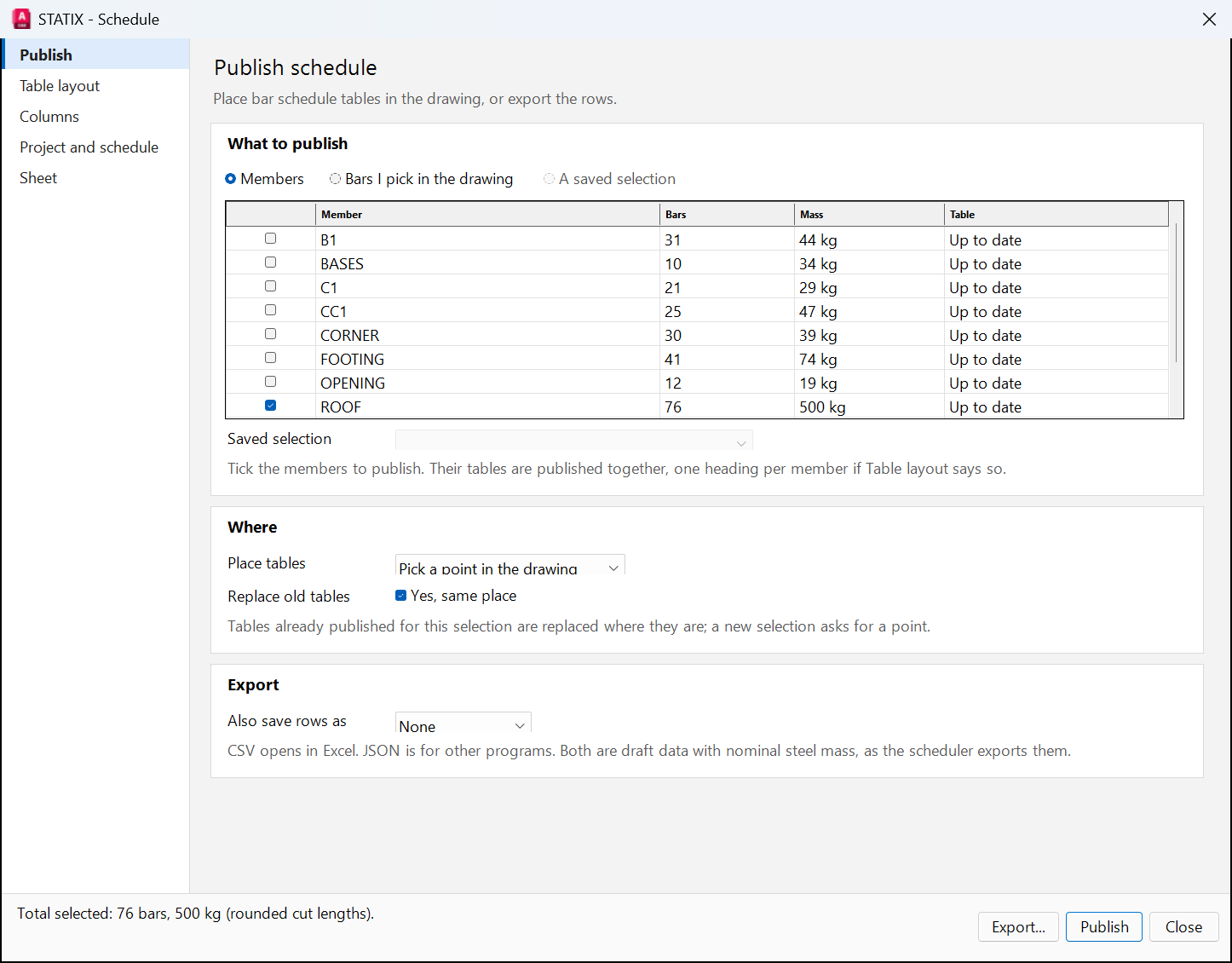
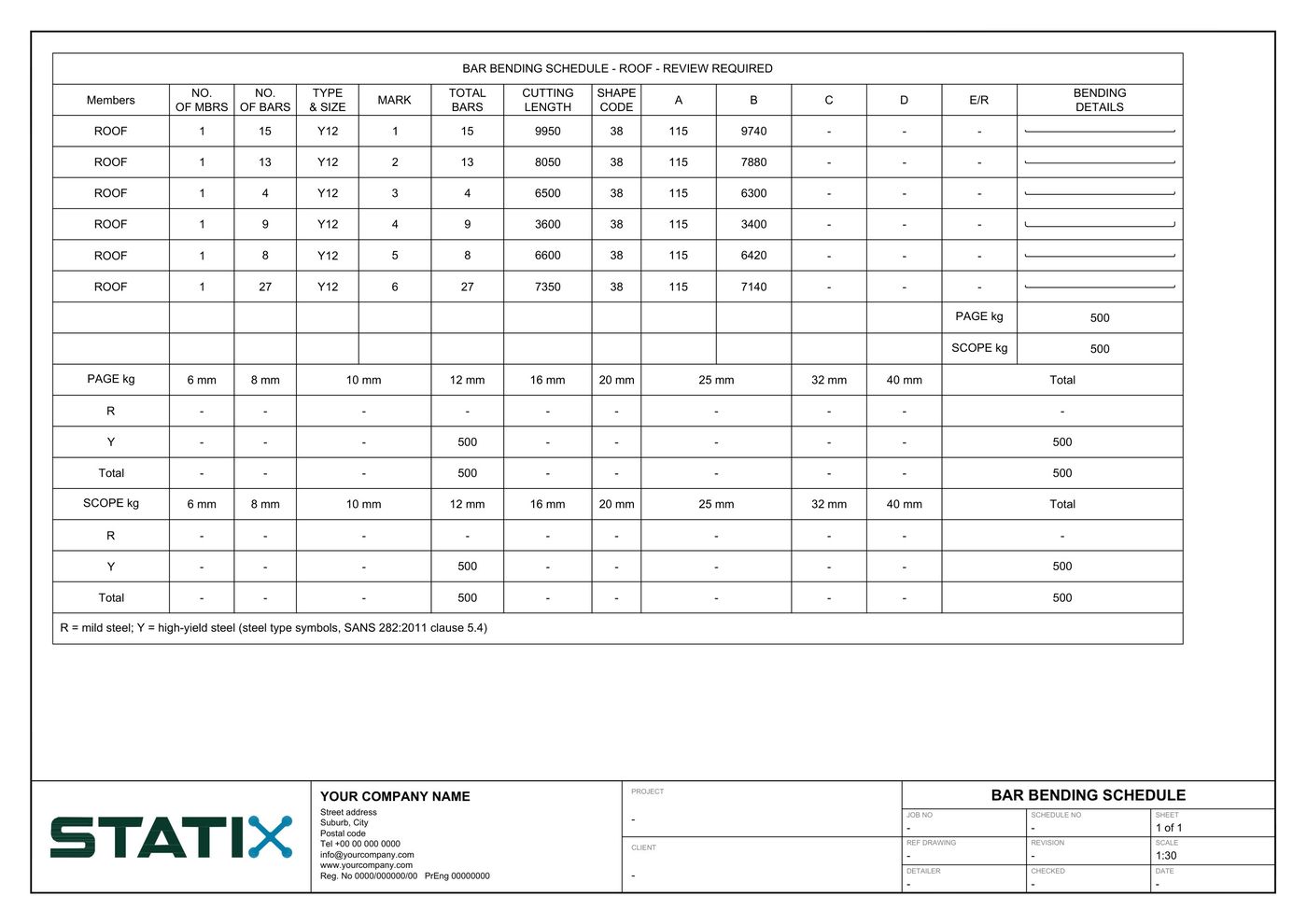
- Click Schedule. On Publish, tick the members, for example ROOF.
- Choose where the tables go and click Publish. Pick the insertion point in the drawing.
- Click Schedule layouts to put each schedule page on its own paper layout (BS_01, BS_02 …) with your title block.
- Click Export to Excel to write the schedule and a mass summary to an .xlsx beside the drawing. Batch print makes a PDF of each sheet.
15All tools
Every STATIX 2D command with its button name and help text. Type to filter.
| Button | Command | What it does |
|---|---|---|
| Add bar | STATIXADDBAR | Choose a bar shape and pick its dimensions, then place a single bar or physical range. |
| Add curtailment | STATIXCURTAIL | Select bars, labels or leaders and choose None, Start, End or Both: each curtailed end of the bar drawn in Front view shows a short tick across it with the bar mark beside it (Bar setup: Use flag curtailment). A drawing symbol only; the schedule and quantities are unchanged. |
| Add dots | STATIXADDDOTS | Add bar-section dots: Single, Equally spaced (number of dots) or Interval spaced (spacing of dots). Pick a bar to draw them as a linked section view of its group, with its label and its own count (edits follow; the schedule counts the bar once), or give a diameter for plain filled dots that schedule nothing. |
| Add multizone | STATIXMULTIZONEADD | Add another scheduled physical range to the selected Front range while retaining one shared bar definition and explicit multizone ownership. |
| Annotation setup | STATIXANNOTATIONDIALOG | Set leader and symbol colours, range-symbol fill and label underlining for existing and future bars in this drawing. |
| Apply cover | STATIXAPPLYCOVER | Reduce a selected bar and its physical range using the drawing's top, bottom and side cover settings: each outside dimension loses the cover of each concrete face it lies on (side across the bar, bottom below, top above) and the bar moves inside the covers. Straight bars, L, U, hairpin, cranked, stepped and link shapes (20, 36-39, 41, 43, 51-55, 60); run-off ends and hooks keep their length. |
| Apply tag preset | STATIXAPPLYTAGPRESET | Preview quantities and scheduled weight before applying a tag preset to selected physical groups. |
| Array group (ARR) | STATIXEDITARRAY | Make a group an array group (ARR): one letter as a list, ARR: 800 ; 900@400 ; 1000@800 (value@offset along the range from its first bar; without offsets the list in equal shares). One group, its bars each with their own length; scheduled one row a length, the mark suffixed. |
| Bar defaults | STATIXBARDEFAULTSDIALOG | Set drawing defaults for new bar layers, label height and label colour. |
| Bar line setup | STATIXBARLINESETUP | Choose single lines or outlined bars for existing and future views that inherit this drawing default. |
| Bar tag | STATIXTAGDIALOG | Set the physical group's tag and quantity multiplier. The range retains its bars per position; the schedule uses the total quantity. |
| Bar zone | STATIXBARZONE | Convert one native Front single bar into a physical range by picking its endpoints and entering a count or maximum spacing. |
| Base | STATIXBASE | Place or edit base concrete with zero, one or two columns. Bound straight mats regenerate with the base. |
| Base reinforcement | STATIXBASEREBAR | Set top/bottom mats - straight (20) or with bent edges (38 both ends, 37 one end) - covers, spacing and layer order, and each column's starters and links; preview layouts and scheduled quantities. |
| Batch print | STATIXSCHEDULEPRINT | Print every STATIX schedule and sheet layout, or the ones you pick, each to its own PDF beside the drawing (DWG To PDF, 1:1). |
| Beam | STATIXBEAM | Enter spans, sections, supports, top and bottom bar rows ending where you curtail them, side bars, link zones and section cuts; preview online and place the elevation and sections, scheduled once. Beam design, anchorage and laps remain the engineer's. |
| Bonded starters | STATIXSTAIRSTARTERS | Specify drilled-in starter bars for a stair on an existing slab. Pick positions, review plan and section, and update linked bars and quantities. |
| Calculator | STATIXAREADIALOG | Calculate reinforcement area or select diameter and maximum spacing with the service. |
| Check bar lengths | STATIXSPLITCHECK | List the bars cut longer than the drawing's stock length and the split bars laid out for other lap settings; split or re-split all, the selected ones, or none (EN 1992-1-1 laps). Wizard bars are named with their Modify command. |
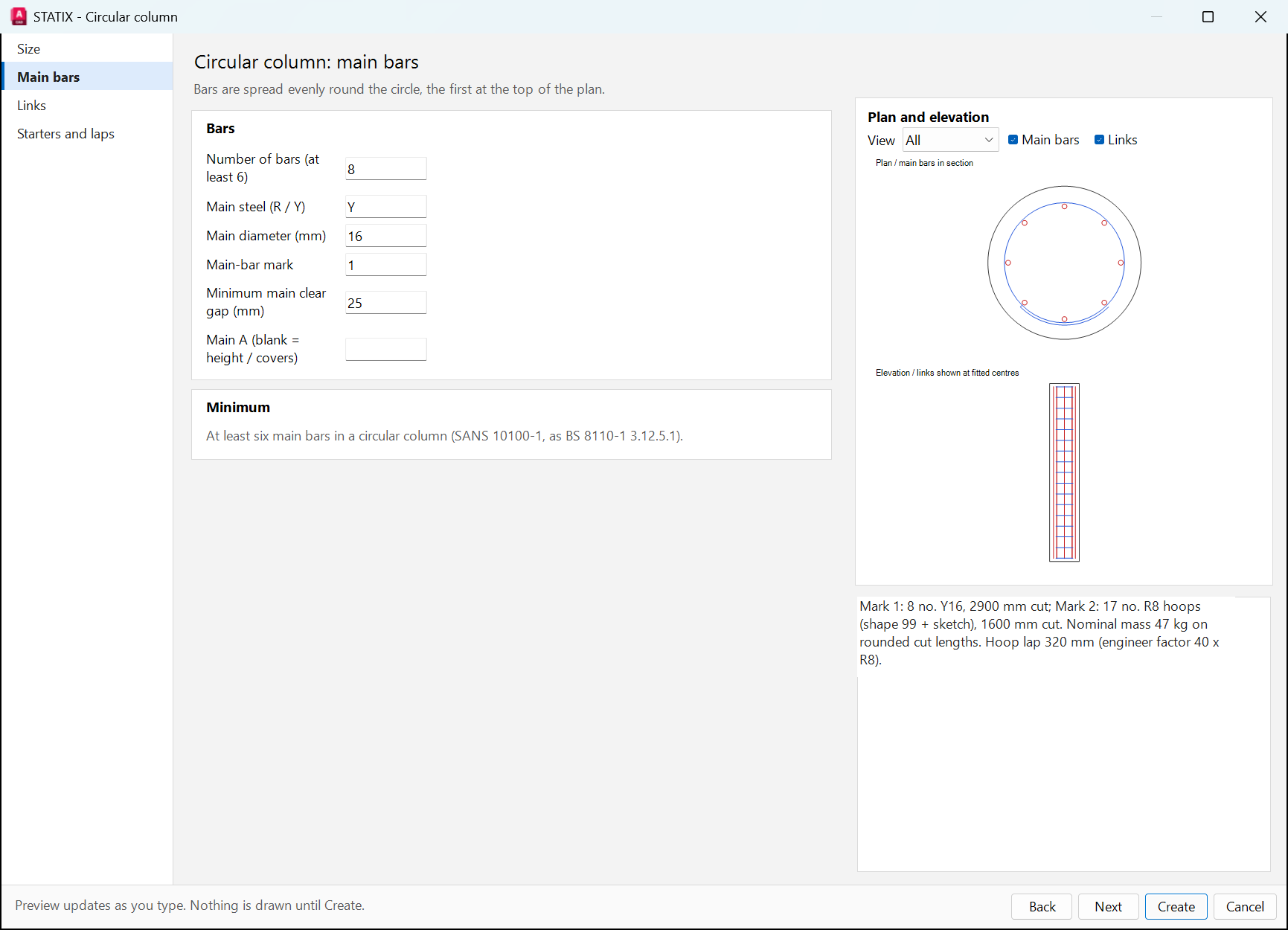
| Circular column | STATIXCIRCULARCOLUMN | Circular column: diameter, at least six main bars on a circle, lapped circular hoops (SANS 282 shape 99 with its sketch) or a helix (shape 86), starters, the projection above the top and laps of long bars; place linked plan/elevation and schedule once. Modify it with Modify or Modify column. |
| Column | STATIXCOLUMN | Preview engineer-specified straight longitudinal bars, rectangular and inner links, starters, the projection above the top and laps of long bars; place linked plan/elevation and schedule once. Design, anchorage checks and full standards verification remain the engineer's. |
| Company details | STATIXCOMPANYDETAILS | Your company name, address, phone, email, website, registration number and logo, written into the schedule template without opening it; also the office-wide (shared) template location. |
| Compose stair sheet | STATIXSTAIRSHEET | Frame the existing stair and bending schedule in two independently scaled editable layout viewports. Position or overlap them on A3, A2 or A1 paper without copying reinforcement. |
| Consolidate marks | STATIXOPTIMIZEMARKS | Combine identical definitions within a selected member under one existing mark, retaining physical groups and quantities. |
| Consolidate picked groups | STATIXOPTIMIZEGROUPS | Pick bar views, labels or leaders; consolidate only their physical groups while leaving unselected groups unchanged. |
| Convert linework | STATIXCONVERTBAR | Select a line or polyline drawn on a bar's centre line, with fillets at its bends if drawn so; it becomes a scheduled bar: straight (20), L (37), U (38), Z (54), 52, 53, 55, a closed rectangle as a link (60), or inclined legs as 62 or 45, dimensions read from the linework. Other shapes are refused with the reason. |
| Corner detail | STATIXCORNER | Pick an L corner, T or X junction and its arms; choose L-bars, U-bars or L-bars with a diagonal, laps and the run, preview, and place scheduled native rebar drawn once in plan. Engineer-specified, not a design of the joint. |
| Count | STATIXEDITQUANTITY | Change one physical group's quantity or maximum spacing while retaining its fixed range. |
| Cut length rounding | STATIXCUTROUNDINGDIALOG | Set the drawing's scheduled cutting-length rounding preference. |
| Delete | STATIXDELETE | Delete selected physical groups and their registered views and annotations. |
| Dimensions | STATIXEDITDIM | Edit a dimension of compatible bars with the same member and mark. |
| Direction | STATIXVIEWDIRECTION | Convert an existing view between Front, Top, Side, their flipped forms and outlined Dot. |
| Distribution bars | STATIXSTAIRDISTRIBUTION | Select a stair with saved section and reinforcement inputs to publish linked distribution bar groups along its waist. Main bars now proposes the waist, knee and landing transverse bars itself; a stair whose waist transverse bars belong to its main groups is edited there. |
| Edit stepped | STATIXEDITSTEP | Change a stepped group's second dimension endpoint, exact step, physical count and range through one protected atomic update. |
| Edit template | STATIXEDITTEMPLATE | Open your schedule template drawing (A3 sheet: frame, title block, logo, company details) to edit it once; every schedule published afterwards prints on it. Made on first use in %APPDATA%\Statix\Templates, or the office's shared template. |
| Existing slab | STATIXSTAIRBASE | Bind a stair bearing to an existing rectangular slab. Specify slab top and thickness; the existing slab stays unchanged. Use Bonded starters to specify the connection bars. |
| Expand | STATIXNATIVETOGGLE | Toggle the selected native range between compact and expanded display. Physical quantity is unchanged. |
| Explode multizone | STATIXMULTIZONEEXPLODE | Convert every range in the selected multizone into an independent scheduled physical object without changing geometry or quantity. |
| Export to Excel | STATIXEXPORTEXCEL | Write the bending schedule to an Excel workbook (.xlsx) beside the drawing: a Schedule sheet with the published table's columns and rows, a Mass summary sheet (steel type x bar size kg, mass per member, total) and the title-block information. The scheduler palette's checked members, else every member. |
| Foundation preview | STATIXFOUNDATIONPREVIEW | Display temporary wall-foundation concrete geometry from fresh service results without placing bars. |
| From STATIX | STATIXIMPORTSTATIX | Draw an element from a STATIX 2D exchange file with its views and saved bars. |
| Guide line | STATIXGUIDE | Pick two points to draw an unscheduled guide line. |
| House | STATIXHOUSE | House foundation wizard: pick the walls (both faces or centre lines) and columns; strip footings per level with steps, pads, the floor-slab mesh and four linked details, each part editable with its own Modify. Start values from SANS 10400-H:2012 |
| Label appearance | STATIXLABELAPPEARANCEDIALOG | Set height, colour, text style and drawing or manual direction for only the selected view's label. Physical geometry, quantity and linked views are unchanged. |
| Label builder | STATIXLABELBUILDER | Build the selected view's label with information codes and a preview, or use its drawing default. |
| Label setup | STATIXLABELSETUP | Manage drawing label templates, tag multipliers and creation defaults. |
| Leader | STATIXLEADER | Place a connected bar/range leader; projected views retain a canonical full-bar attachment. |
| Leader bends | STATIXLEADERPATH | Pick intermediate leader bends, Back to remove a pick, or Automatic to restore the drawing route. Bends move with the selected view. |
| Leader editor | STATIXLEADERPATHDIALOG | Edit, add, remove or reorder leader bends in a coordinate table with a route preview. Restore automatic routing when required. |
| Link bar zones | STATIXLINKZONE | Create a linked single from a physical range, or a scheduled linked range from a single, without duplicating physical quantity. |
| Link bars | STATIXLINKBAR | Link two ordinary native singles or ranges in any supported drawing view. The first supplies the physical definition and scheduled quantity; the second retains its viewpoint and leader. |
| Linked view | STATIXREF | Create another view of the selected physical group without adding scheduled quantity. |
| Main bars | STATIXSTAIRMAIN | Edit a stair's main, landing and support bar groups. A stair without them opens with the standard arrangement proposed from its geometry, bar specification and support choices (a detailing proposal, not a design): review and edit the groups and their live online shapes and ranges, then create linked plan and section views. Transverse bars (waist, knees, landings; a return stair's middle landing) are proposed with them, their checks only warn; Add transverse bars adds them to saved main groups. |
| Mark on bar | STATIXMARKONBAR | Select bars, labels or leaders: their bar mark is written as text on the bar drawn in Front view, along the bar, at its middle or a picked point, with its own height, text style and layer (Remove takes it off). It follows the bar when it is stretched or moved and the mark when it is renamed. A drawing symbol only; the schedule and quantities are unchanged. |
| Match bar | STATIXMATCHBAR | Copy steel, diameter, selected dimensions or a complete shape definition; linked target views update together with fresh validation. |
| Match steel / diameter | STATIXMATCHSPEC | Pick source and target bars; match steel, diameter or both with linked-view updates and fresh validation. |
| Member occurrence | STATIXOCCURRENCE | Assign a physical group to an explicit member occurrence. |
| Member size | STATIXMEMBERDIALOG | Set descriptive member-size information without changing quantity or calculations. |
| Mesh | STATIXMESH | Lay welded mesh sheets (Ref 100/193/245, SANS 10144:2012 Table 15) over a closed slab outline, with laps, cut sheets and fabric marks. |
| Mesh schedule | STATIXMESHSCHEDULE | Place the fabric schedule (SANS 282:2011 table 4) of the drawing's meshes. |
| Modify | STATIXWIZARDMODIFY | Select base (concrete or mat bars), stair, foundation, area-zone, column, beam, opening or corner detail output to open its owning editor. Copied or conflicting ownership is refused. |
| Modify beam | STATIXBEAMMODIFY | Reopen recorded beam concrete, annotation, bar, label or leader. Unchanged output regenerates atomically; added or removed bars and views are reviewed; manual changes are disclosed without discarding them. |
| Modify column | STATIXCOLUMNMODIFY | Reopen recorded column concrete, bar, label or leader. Unchanged output regenerates atomically; manual changes are disclosed without discarding them. |
| Modify detail | STATIXDETAILMODIFY | Select an opening or corner detail's bar, label or opening outline to reopen its settings and redraw it. Refused while linked views or hand edits would be lost. |
| Modify house | STATIXHOUSEMODIFY | Reopen a house's wizard from any of its footings, pads, mesh sheets or details and remake its parts (a part edited on its own is kept unless you say Remake). |
| Modify mesh | STATIXMESHMODIFY | Regenerate a STATIX mesh with a new fabric, level or member. |
| Modify stair | STATIXSTAIRMODIFY | Edit a generated stair's inputs. Bound distribution bars regenerate together with concrete; conflicting manual edits require review. |
| Move bar | STATIXMOVEREPBAR | Slide the drawn representative bar along its own range. The range line, both arrows, physical bars and schedules do not change. |
| Move drilling note | STATIXSTAIRNOTE | Place the starter drilling note. Its position is preserved when regenerating the staircase. |
| Move view | STATIXMOVEVIEW | Move the selected view, its label and its leader together. |
| Number of members | STATIXMEMBERCOUNT | Change the confirmed repetition count for one selected member occurrence. Every assigned physical group updates together; range counts and linked views remain unchanged. |
| Opening detail | STATIXOPENING | Select a closed polyline or circle as the opening; choose trimmers, corner diagonals or both, faces and bars, preview the marks and lengths, and place scheduled native rebar. Engineer-specified, not a design of the opening. |
| Pile cap | STATIXPILECAP | Pile cap wizard: a rectangular cap on 1 to 9 piles (or typed centres) - pile diameter and spacing, cap size and depth, covers, bottom U-bars and top bars each way, lapped U side bars, the column starters and links; plan and two elevations with the piles. The engineer specifies the bars; they are detailed, not designed. |
| Publish | STATIXTABLE | Publish a bending schedule for the chosen member. |
| Publish house | STATIXHOUSEPUBLISH | Publish the house's bar schedule and, beside it, its fabric schedule (SANS 282 tables 3 and 4). |
| Publish selection | STATIXTABLESELECTED | Publish only the physical groups selected from the drawing. |
| Range | STATIXEDITRANGE | Pick a new range end with a preview or enter its length. Hold either end still; update linked views together. |
| Re-detail in 2D | STATIXREDETAIL | Mark an element drawn from STATIX as re-detailed in 2D (does not match STATIX/Revit) until Update takes every bar again. |
| Remove link | STATIXUNLINK | Detach an ordinary linked drawing view as an independent physical group. It retains its displayed range and count, and remains unscheduled until Schedule inclusion is enabled. |
| Remove multizone | STATIXMULTIZONEREMOVE | Detach the selected range as an independent scheduled object while retaining its geometry, label, mark and physical quantity. |
| Rename | STATIXRENAME | Rename selected bar marks using the existing drawing command. |
| Renumber by position | STATIXRENUMBERPOSITION | Renumber bar marks in the order the bars are drawn (rows left to right from the top, or columns top to bottom from the left), per member or continuous, in the drawing's mark style. Bars sharing a mark keep sharing it; labels, leaders and curtailment marks follow; one undo step. |
| Renumber flag | STATIXRENUMBERFLAG | Set Renumber Yes or No on the selected bars: Renumber by position keeps the mark of a bar set to No, and every bar sharing it. |
| Reset multizone text | STATIXMULTIZONERESETTEXT | Put a multizone's text back: a shared label where it was placed, or each zone's own count text beside its zone as the picked zone's; leaders redrawn, one undo step. |
| Retaining wall | STATIXRETAININGWALL | Retaining wall: pick the toe's bottom corner and the soil side; wall length, H1, At, Ab, X, base C, toe B, heel D, shear key F and xf; back and front vertical, horizontal and starter bars, base top and bottom bars and lacing, key stirrups and lacing as Y12@200; covers and lap. Draws the section and its scheduled bars; the engineer specifies them, they are detailed, not designed. Modify it with Modify. |
| Reverse local X | STATIXFLIPX | Reverse the selected view's local X coordinate, reflecting about its local Y axis. |
| Reverse local Y | STATIXFLIPY | Reverse the selected view's local Y coordinate, reflecting about its local X axis. |
| Schedule | STATIXSCHEDULE | One window for the bending schedule: publish members, picked bars or a saved selection (with CSV or JSON rows), the table layout and columns, and the project and schedule information. |
| Schedule inclusion | STATIXSCHEDULEFLAG | Include or exclude a physical group using its selected schedule-source view. |
| Schedule layouts | STATIXSCHEDULELAYOUTS | One paper-space layout for each page of the published schedule (BS_01, BS_02 ...): the page and its title block in a viewport at the largest standard scale that fits the paper. Run again to update them. |
| Schedule source | STATIXSOURCE | Designate the one view that supplies this physical group's scheduled quantity. |
| Scheduler | STATIXSCHED | Open the scheduler palette to choose members and groups, calculate, edit rows and publish bending schedules. |
| Section | STATIXSECTION | Create an associated outlined section view while retaining the physical bar quantity. |
| Section dot setup | STATIXSECTIONDOTSETUP | Set physical diameter or a stored display scale for existing and future section dots in this drawing. |
| Selected bar | STATIXSELECTEDBAR | One window for the picked bar: steel, size, mark, count, spacing, range length and shape; its label, leader and look in this view. Nothing changes until Apply; each change runs through its own edit and checks. Double-click a bar to open it. |
| Send to STATIX | STATIXSENDTOSTATIX | Send the drawing's STATIX 2D beams (one member per span), columns and stairs to the STATIX app as one file (From Revit in STATIX). Ids are kept: Import and Update from STATIX bring the designed bars back under the same elements. Levels, the plan base point and the concrete grade are set at the prompt. |
| Separate labels | STATIXMULTIZONESPLITLABEL | Restore the independent label positions and visibility saved before common-label grouping. |
| Setup | STATIXBARSETUP | One window for this drawing's bar settings: new bars, covers, labels, label text, leaders and symbols, bar display, rounding, bar lengths and laps (EN 1992-1-1, SA annex values to be confirmed), quantities. OK saves every page. |
| Shape | STATIXSHAPEDIALOG | Choose a new shape, enter its dimensions and explicitly retain or reattach profile leaders. |
| Shape exchange | STATIXSHAPEEXCHANGE | Create or reuse explicit dimension mappings, review the target shape online and update every matching member/mark group and linked view. |
| Share labels | STATIXMULTIZONELABEL | Select one view per physical group of the same bar definition to share a movable label. Supports column zones and multizones; scheduling quantities stay separate. |
| Show / hide | STATIXTEXTTOGGLE | Show or hide only the selected view's bar label. Its geometry, leader, linked views and physical quantity are unchanged. |
| Show / hide leader | STATIXLEADERTOGGLE | Show or hide only the selected view's existing leader. Its label, linked views and physical quantity are unchanged. Use Bar leader first if it has none. |
| Slab area | STATIXAREAZONE | Select polygon boundaries and openings, preview bar groups online - straight (shape 20) or with bent edges (38 both ends, 37 one end) - and create native rebar. Long straight bars are split with EN 1992-1-1 laps; bent bars are not lapped. Reopen saved inputs with Modify wizard; a changed group layout is reviewed before it is written. |
| Splice | STATIXSPLICE | Splice one bar with a lap: at the Middle of the bar, a picked Point or a Distance from its start; the lap as a factor of the bar diameter, or Enter for the drawing's EN 1992-1-1 lap. Every bar of a group laps there. A stretch keeps the lap where it was put; Unlink split frees the pieces. |
| Stair | STATIXSTAIRPLAN | Enter single or return flight geometry, preview reinforcement drafts and place the concrete plan and optional sections. Publish distribution bars separately. |
| Stair cross-section | STATIXSTAIRSECTION | Cut a stair anywhere along its longitudinal section - a flight, a kink or a landing - and place the cross-section: its concrete (the waist with the step above it, or the landing) and the bars at the cut as linked views [REF] (dots for bars running along the stair, a bar across for the transverse bars), each group labelled once; a section mark (A-A) on the longitudinal section. Modify keeps the cut. Nothing is scheduled again. |
| Stair preview | STATIXSTAIRPREVIEW | Preview concrete and optional unscheduled reinforcement drafts without placing drawing objects. |
| Stair schedule | STATIXSTAIRSCHEDULE | Publish the stair's bound distribution, bonded starter and specified main groups with shape diagrams and weights. Unspecified reinforcement remains excluded and identified. |
| Status | STATIXSTATUS | Show the add-in version, the licence and whether the calculation engine is reachable. |
| Steel / dia | STATIXEDITSPEC | Change steel designation and diameter with fresh service validation. |
| Strip footing | STATIXFOUNDATION | Place editable straight wall-foundation concrete from a centreline, width and depth. With reinforcement settings it also generates and schedules the bars along and across the wall, laps over the longest bar, and the corners and T's of the network (overlapping bars or L-bars). Optionally draws each strip's cross-section and side view. Not drawn yet: bars where a strip meets another foundation. |
| Title block and logo | STATIXSCHEDULETITLE | Your title block drawing and logo under every schedule page, filled from Project and schedule (Job No, Sched No, Ref Dwg, Rev, Detailer, Date, project); saved with the drawing and as your defaults. |
| Toggle multizone | STATIXMULTIZONETOGGLE | Show only the selected multizone range, or restore all ranges with their prior geometry, text and leader visibility. |
| Unlink split | STATIXUNLINKSPLIT | Make the lapped pieces of a split bar plain bars: a stretch no longer re-splits them and a shorten no longer re-joins them. |
| Update from STATIX | STATIXUPDATESTATIX | Read a newer STATIX file and redraw the bar groups you tick; other bars, labels and leaders stay as they are. |
| View angle / signs | STATIXEDITVIEW | Set the selected view's angle in degrees and independent local X/Y signs. |
| View dot sizing | STATIXSECTIONDOTVIEW | Set the selected view to inherit its drawing default, use physical diameter, or use a custom section-dot scale. |
| View line style | STATIXBARLINEVIEW | Set the selected view to single line, double outline or its drawing default without changing scheduled quantities. |
| View linked bars | STATIXVIEWLINKED | Locate the linked views of the selected bar group. |